How to use the Follow-up stage to collect client homework
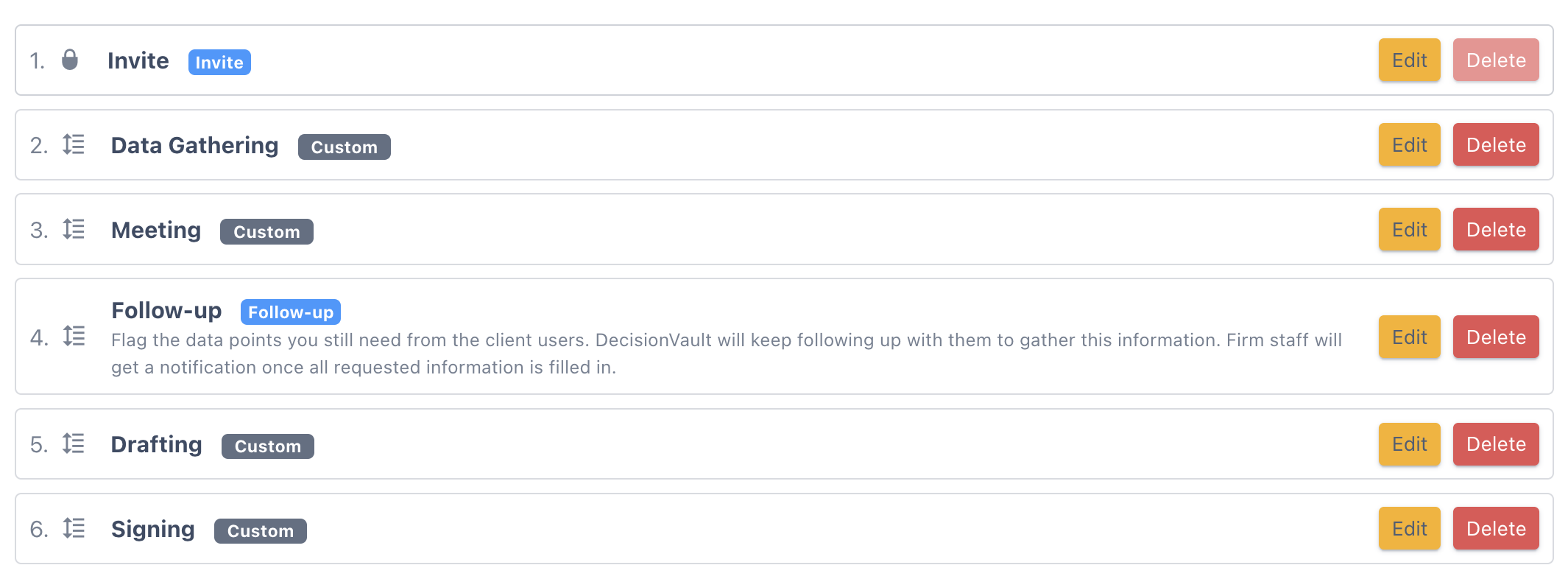
After a client meeting you often need a few more things: a missing date of birth, an address, a signed document. The Follow-up stage lets you flag exactly what is still needed, sends the client a clear request, and tracks what comes back. The default workflow includes a Follow-up stage as stage 4, between Meeting and Drafting.
Watch a quick demo of the whole flow:
Flag what a matter still needs
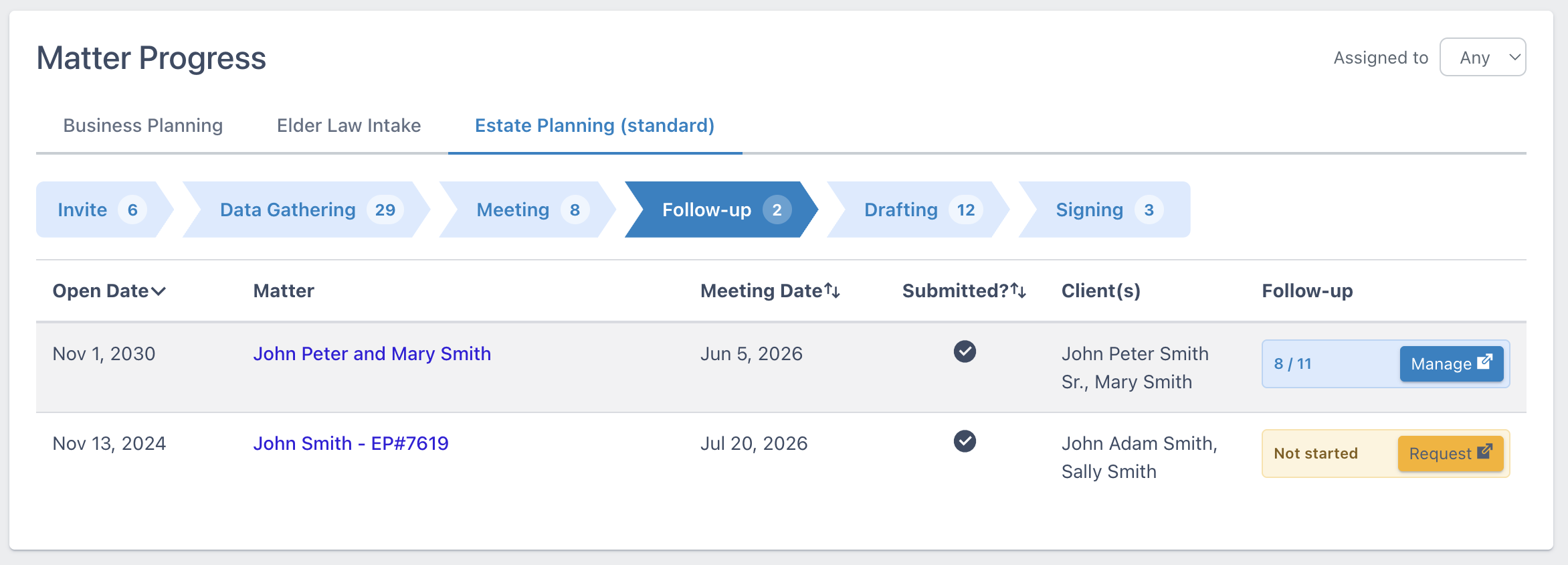
- Open Matter Progress, select the tab for your workflow, and select the Follow-up stage
-
Select Request (first time following-up) or Manage on the matter's row to open the Follow-up screen
-
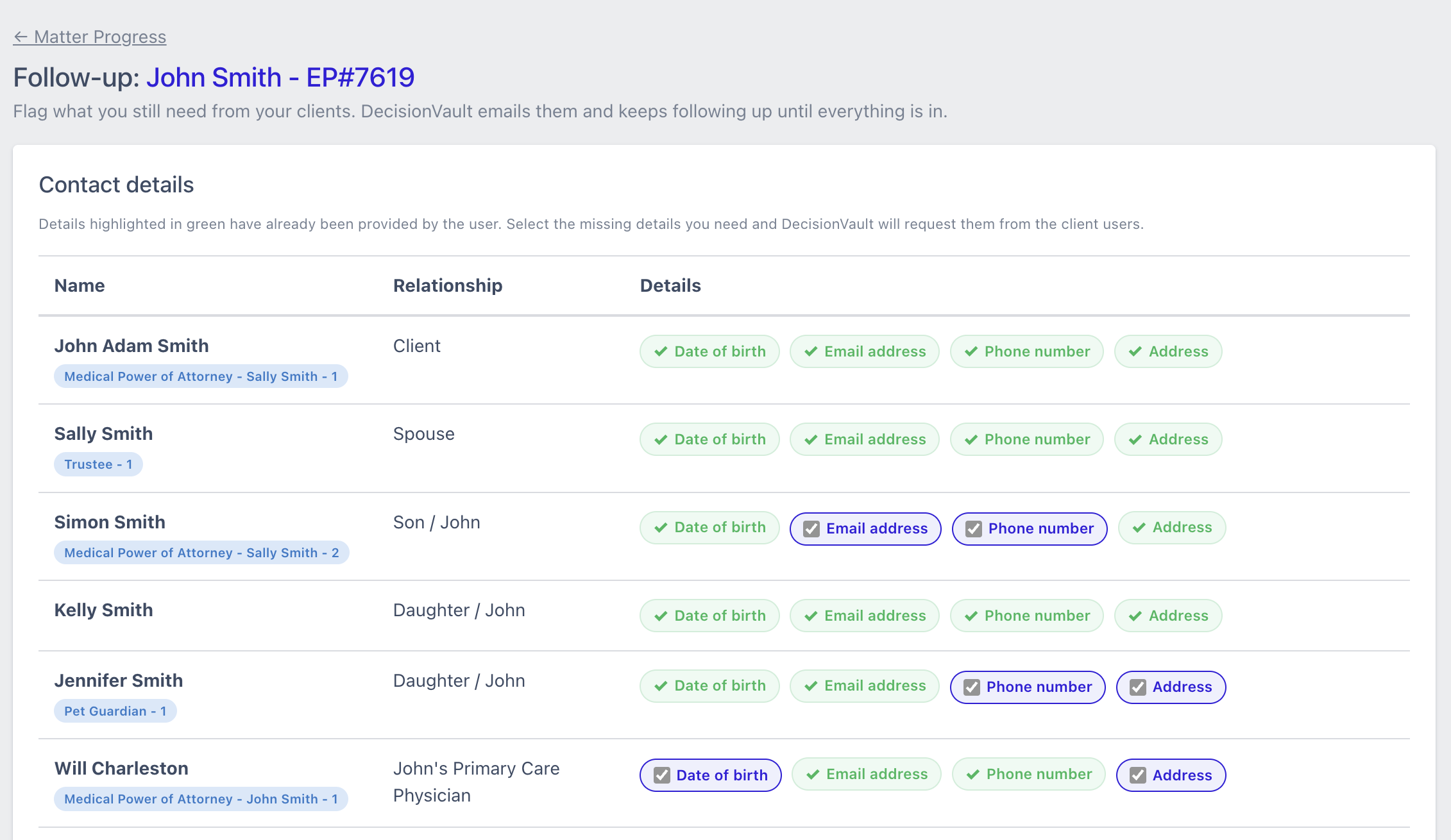
Check the contact details you need from each person: Date of birth, Email address, Phone number, Address, Social Security Number
-
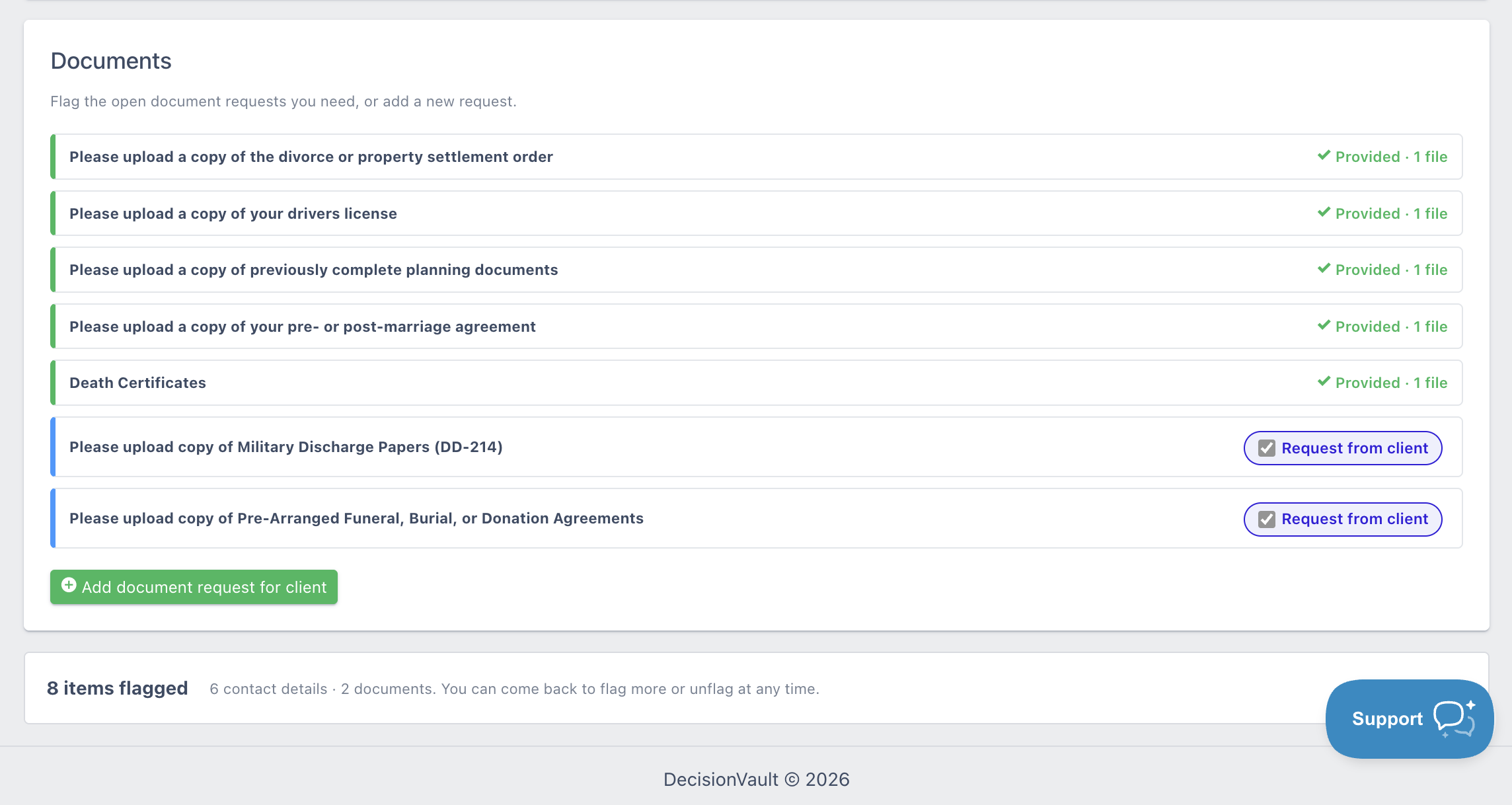
In the Documents card, turn on Request from client for documents you need, or select Add document request for client to ask for something new.
Track what comes back
On Matter Progress, the Follow-up column shows the number of items provided out of items flagged. It turns green when all items are in. Your team is notified when everything has arrived.
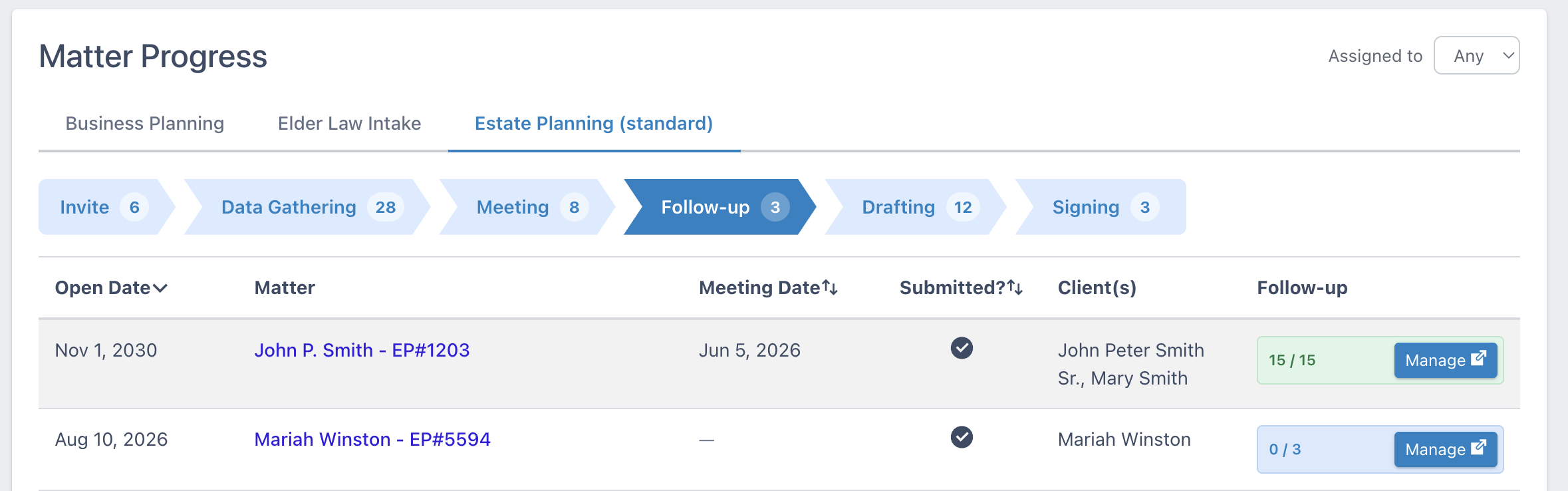
The matter does not move on by itself. When you are ready, open the matter, find Stage on Matter Details, select edit, choose the next stage and save.
What your client receives
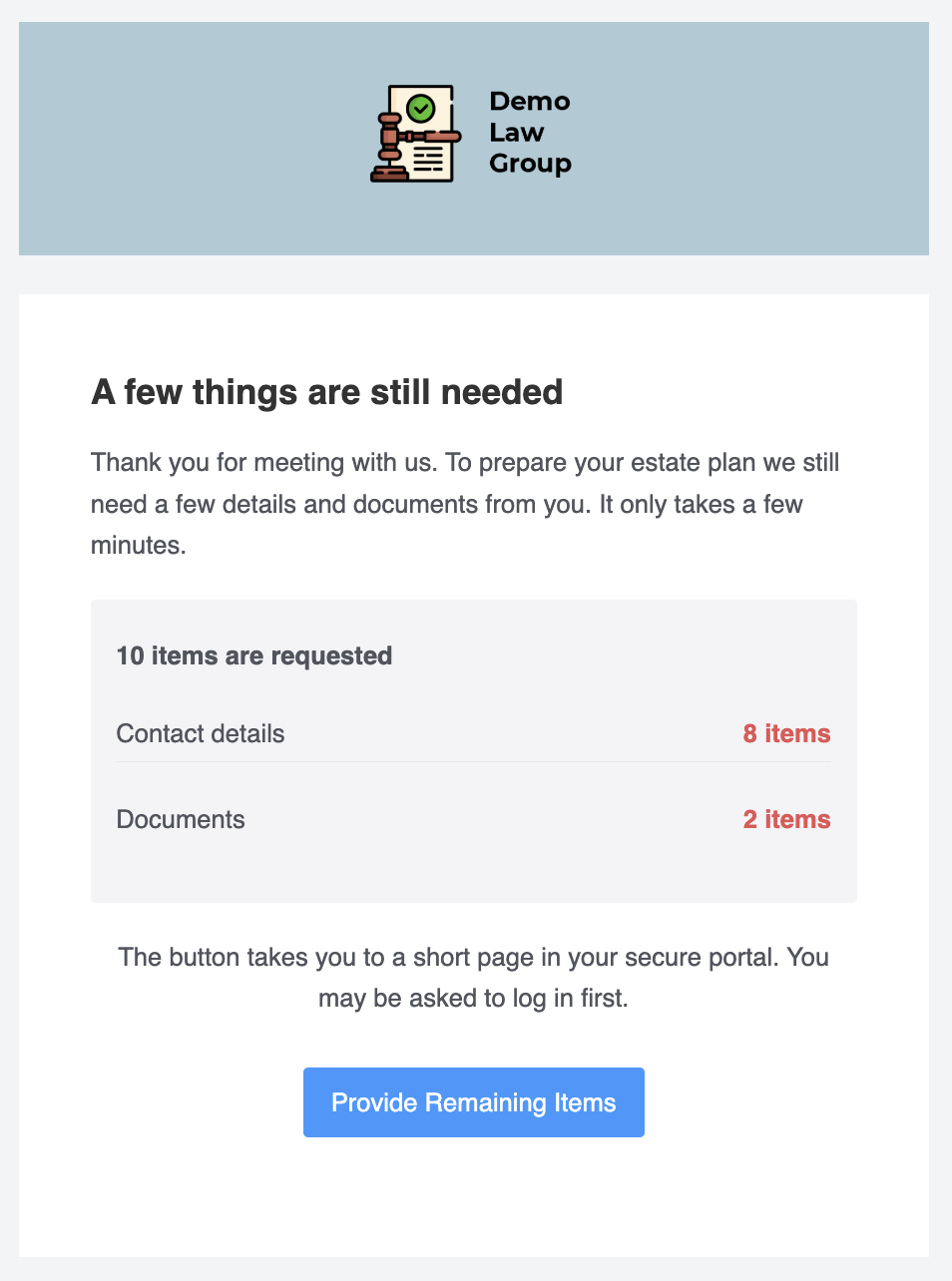
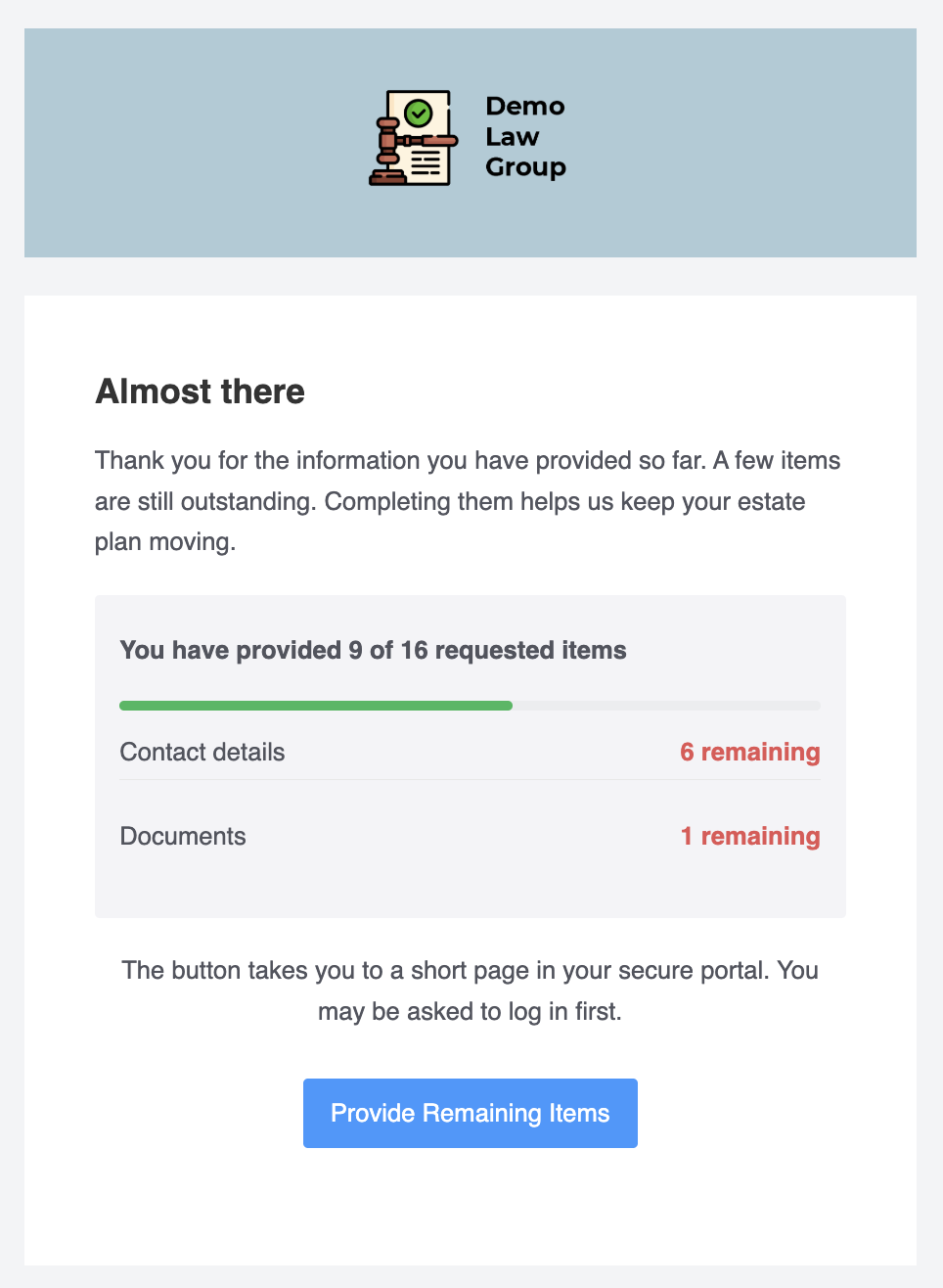
When you flag items, the client gets an initial email with all the requested items, and a reminder email after if they have not yet finished providing them.
Initial request email template:
Reminder email template:
These email templates can be customized from the Email Templates screen under the Firm Settings. Templates are set per questionnaire, so repeat for each questionnaire you use.
The button opens the matter's remaining items page in the client's secure portal, with one card per contact listing only the items still needed.
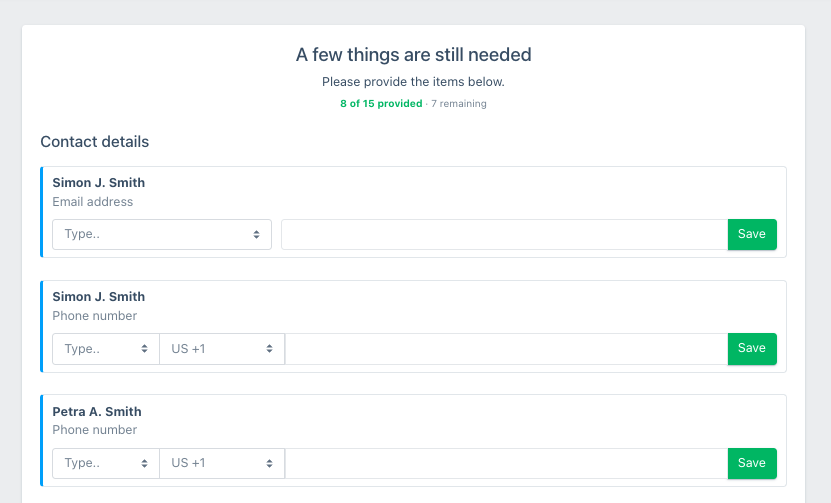
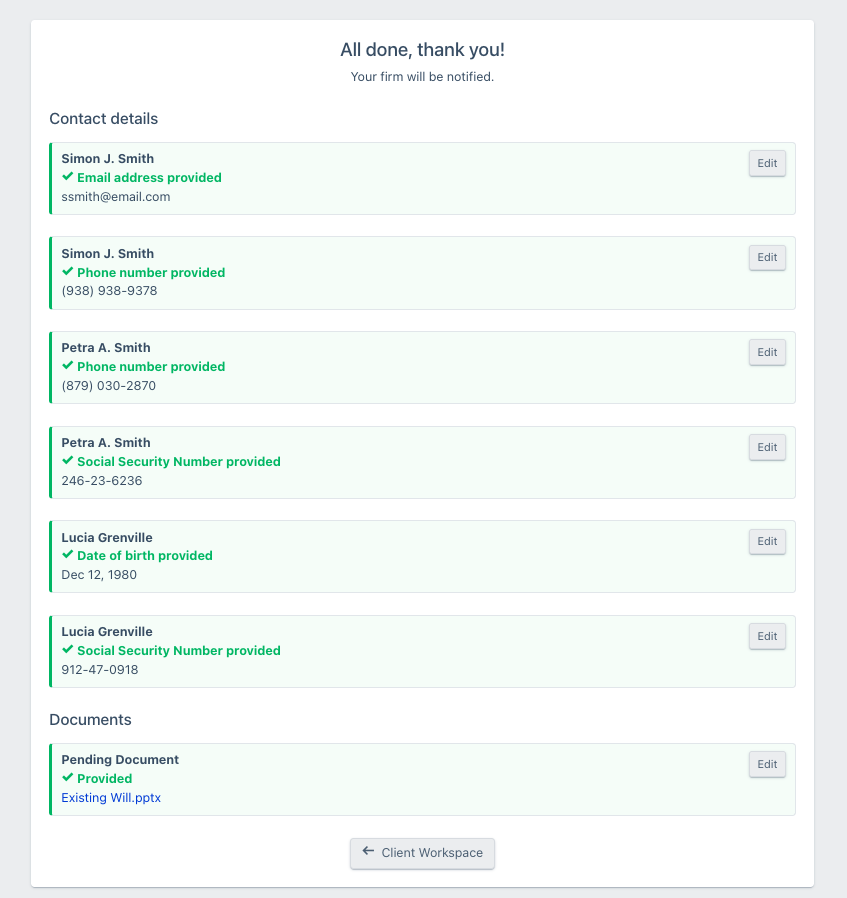
After the clients provide all the pending items they will see this screen:
How reminders stop
Reminders continue until the client has provided everything or chooses to stop them. Each email has a Stop reminders link below the main button. Stopping is per client user, so one person stopping does not stop the others. Your team gets a confirmation email when someone stops. When every client user has stopped, the matter shows a gray Reminders off label. You can still follow up manually.
When everything is in
When the clients have provided all requested items, your team gets an email titled All requested items are in. It names who provided the items and the matter they belong to, shows a count per category, such as contact details provided and documents uploaded, and has an Open Matter button that takes you straight to the matter:
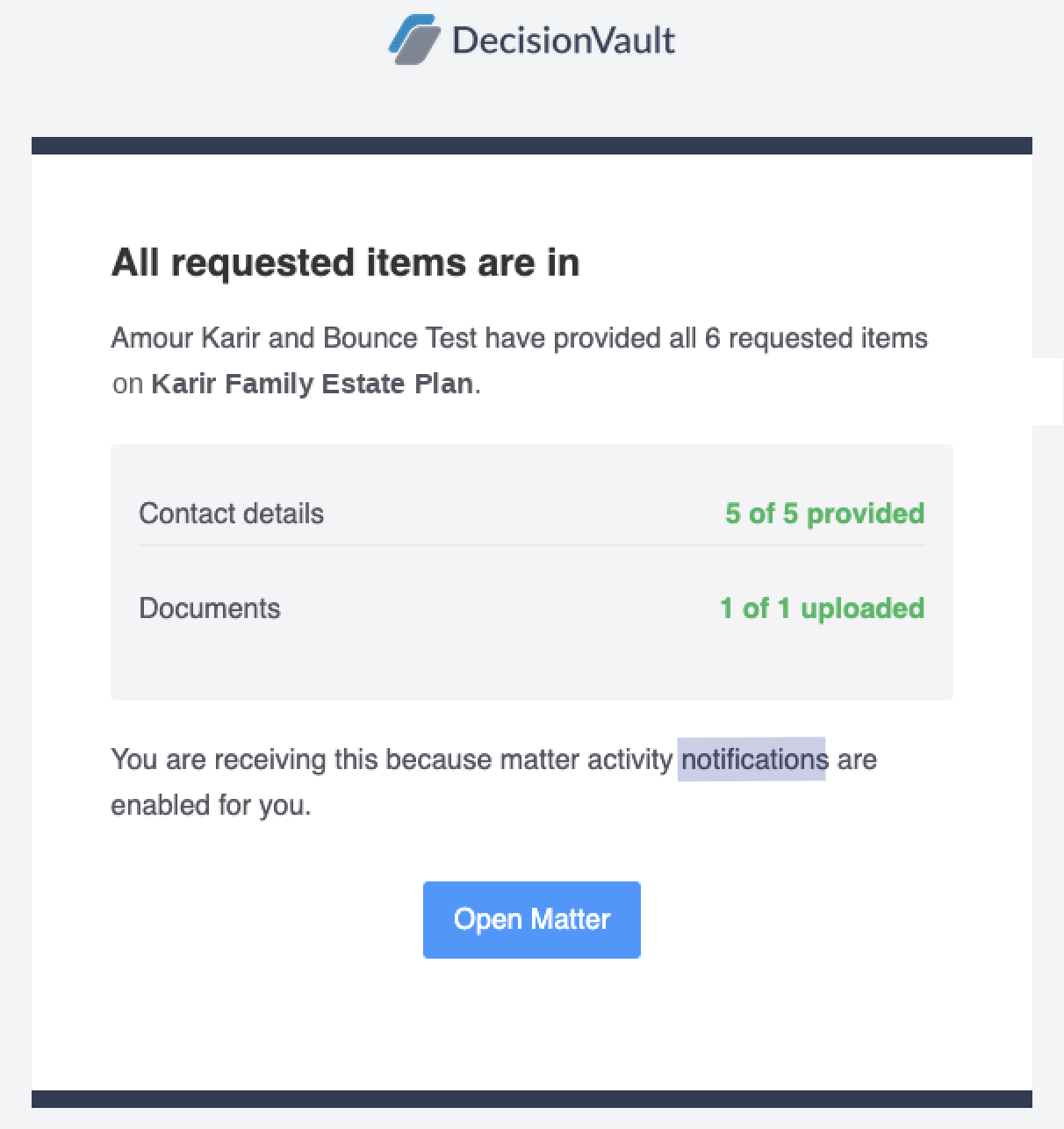
The email goes to the staff members who have matter activity notifications enabled.
Frequently Asked Questions
Can I turn off the follow-up functionality?
Yes. Remove the special Follow-up stage from your workflow and create a regular custom stage in its place. This hides the automatic follow-up functionality. See How to set up Matter Workflows for how to delete and add stages.
What can I request from a client in the Follow-up stage?
Contact details for each person on the matter (date of birth, email address, phone number, address, Social Security Number) and documents: turn on Request from client for open document requests, or add a new document request.
Will my client keep receiving reminder emails forever?
No. Reminders stop as soon as the client has provided everything, or when they select the Stop reminders link included in every email. Stopping is per client user, and your team receives a confirmation email when someone stops.
Can I change the wording of the follow-up emails?
Yes. Edit the initial request and reminder templates from the Email Templates screen under Firm Settings. Templates are set per questionnaire, so repeat for each questionnaire you use.
Does the matter move to the next stage automatically when everything is provided?
No. Your team is notified when all items are in, and you move the matter forward yourself: open the matter, find Stage on Matter Details, select edit, choose the next stage and save.
How will I know when all requested items are in?
You get an email titled All requested items are in, with a count per category and an Open Matter button. It goes to the staff members who have matter activity notifications enabled.