How to use the Matter Activity screen
The Matter Activity screen shows you what has happened on your open matters, in one place. You can see when a client uploads a document, when a question is updated, when a stage changes, and when a sync with another system succeeds or fails. You do not need to open each matter to find out. To access the feed click Matters from the left menu and then click Activity.
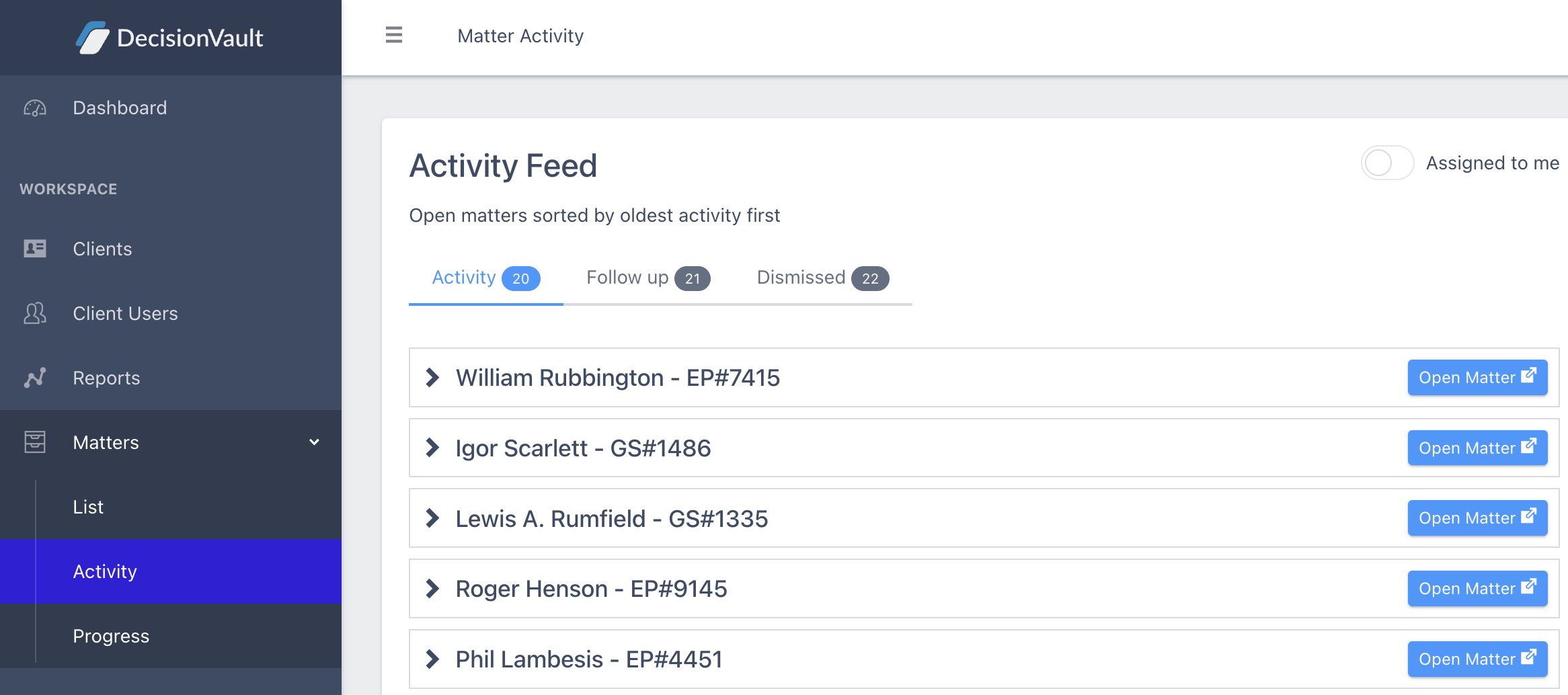
Each matter has its own card. Click the arrow next to the matter name to open or close the card.
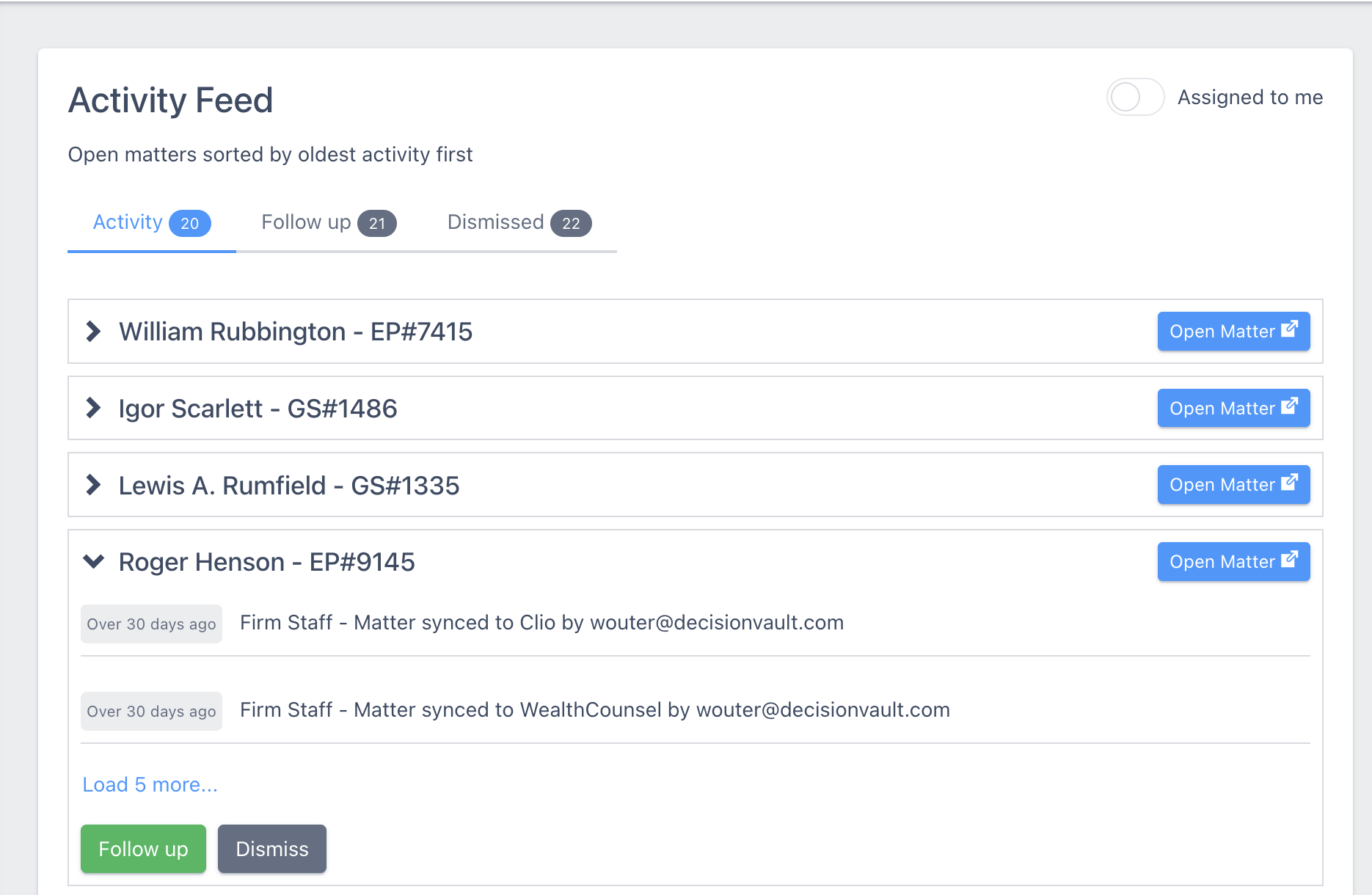
On an open card you will see:
- How long ago each event happened, such as "Yesterday" or "Over 30 days ago".
- A colored label for some events, such as Created or Updated.
- Who did it. "Client User" means your client. "Firm Staff" means someone at your firm.
- What happened. Examples: a document was uploaded, a question was updated, the stage changed from Data Gathering to Drafting, the matter was un-submitted, the matter name was changed, the matter synced to Clio, or a sync to another system failed.
If a matter has more events than fit on the card, click Load 5 more to see the next five. To go to the matter itself, click Open Matter at the top right of the card.
The screen is organized into three tabs:
- Activity. Matters with activity you have not dealt with yet. On each card you can click Follow up or Dismiss.
- Follow up. Matters you marked to come back to. On each card you can click Dismiss when you are done.
- Dismissed. Matters you cleared. On each card you can click Follow up to move it to the Follow up tab, or Back to Activity to put it back in the Activity tab.
Turn on Assigned to me at the top right to see only the matters assigned to you. Turn it off to see every open matter.
Frequently Asked Questions
How is this different from a matter's Feed tab?
The Matter Activity screen shows recent events across all your open matters in one place, so you can spot what needs attention. The Feed tab on a matter's details screen shows the full, filterable history of that single matter. Use Matter Activity to triage, and open the matter's Feed tab to dig into the details.
What do Follow up and Dismiss do?
They help you work through new activity. Follow up moves a matter to the Follow up tab so you can come back to it; Dismiss moves it to the Dismissed tab when you are done. From the Dismissed tab you can always send a matter back using Follow up or Back to Activity.
Can I see only the matters assigned to me?
Yes. Turn on Assigned to me at the top right. Turn it off to see every open matter.
How do I get to the matter itself?
Click Open Matter at the top right of the matter's card. Use the arrow next to the matter name to expand or collapse a card, and Load 5 more to see older events.