How to track Matter Progress
The Matter Progress screen shows where every matter in your firm stands. Matters are grouped by workflow, and each matter sits in one stage of its workflow. A Workflow is the list of stages a matter moves through. You attach a workflow to one or more questionnaires, and every matter created from those questionnaires follows it.
Open Matter Progress from the Matters menu.
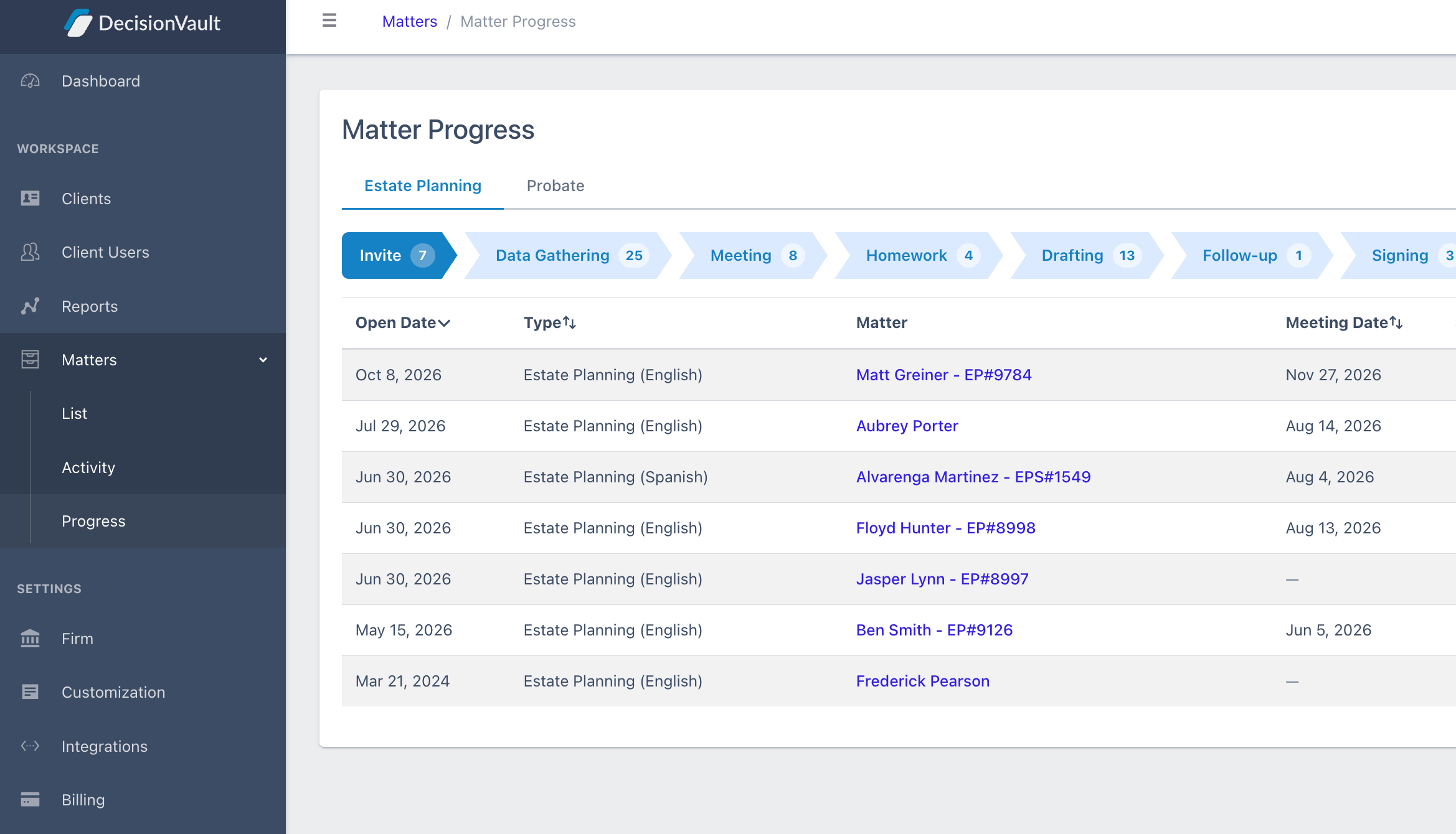
From here you can see the following:
- Open Date: when the matter was created
- Type: the questionnaire and language, for example Estate Planning (English)
- Matter: the matter name. Select it to open the matter.
- Meeting Date: the scheduled meeting
- Submitted?: a check mark means the client has submitted their answers. A dash means not yet.
- Client(s): the clients on the matter
- Follow-up management: shown when you select a Follow-up stage.
Each tab is named after a workflow, so select a tab to see the matters that follow that workflow and its stages. If several questionnaires share one workflow, their matters appear together on the same tab, and the Type column tells them apart.
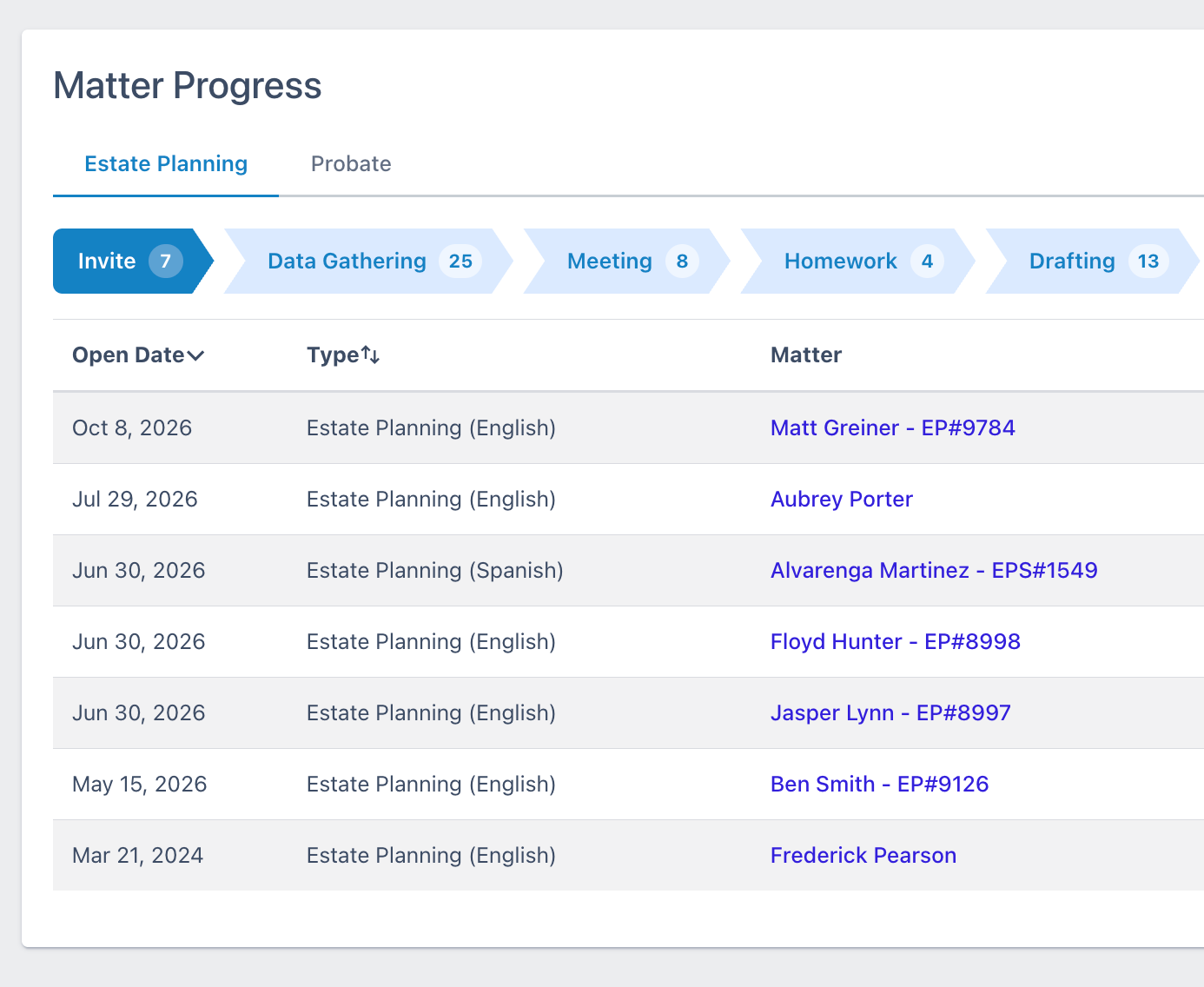
Use the Assigned to dropdown in the top right to see matters assigned to Any firm staff user or choose Me to see only your own.
How matters get their first stage
Every matter starts in the Invite stage as soon as it is created. That happens when your firm creates the matter manually, or when a client starts a questionnaire from your standard link. When you attach a workflow to a questionnaire that already has matters, they are placed automatically. Matters whose client has accepted their invitation start after Invite. Everything else starts in Invite.
Change a matter's stage
Matter Progress shows stages but does not change them. To move a matter:
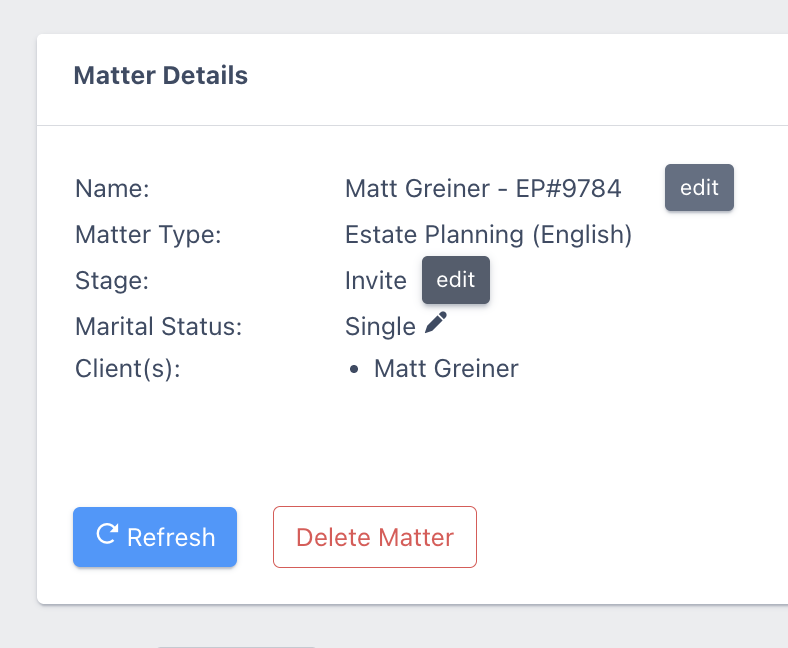
- Select the matter's name to open its Matter Details screen
-
Find the Stage line. It shows the current stage with an edit button.
-
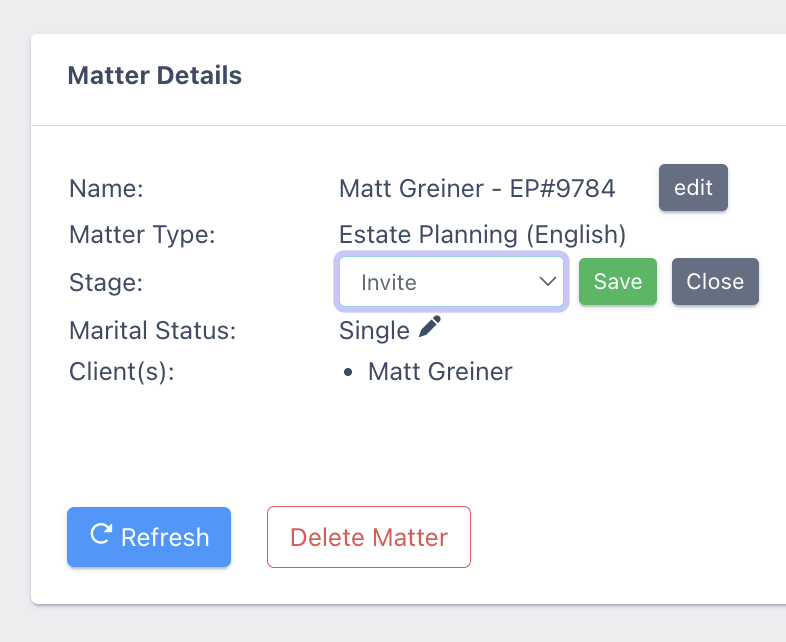
Select edit, choose the new stage, and save
Matters do not move on their own from the Follow-up stage. When the client has provided everything, your team gets a notification and you move the matter forward yourself.
Note: If a matter is not showing up in the Matter Progress screen, it's because the type of questionnaire for it has no workflow attached. It must be set up from its Customization screen.
Frequently Asked Questions
Why is a matter not showing on the Matter Progress screen?
Its questionnaire has no workflow attached yet. Attach one from the questionnaire's Customization screen, and its matters appear on that workflow's tab.
Do matters move through the stages automatically?
No. Every matter starts in the Invite stage, and firm staff move it forward: open the matter, find Stage on the Matter Details screen, select edit, choose the new stage and save. This also applies to the Follow-up stage: your team is notified when the client has provided everything, and you move the matter on yourself.
Can I see only the matters assigned to me?
Yes. Use the Assigned to dropdown in the top right of the Matter Progress screen and choose Me.
Why do matters from different questionnaires show on the same tab?
Each tab is a workflow, not a questionnaire. Questionnaires that share a workflow share a tab, and the Type column shows which questionnaire each matter came from.