What does the Client Workspace look like for my clients?
When your client logs in to DecisionVault they land in the Client Workspace, the client portal for everything your firm shares with them. It has three sections: Questionnaires, Shared Documents, and Messaging.
Questionnaires
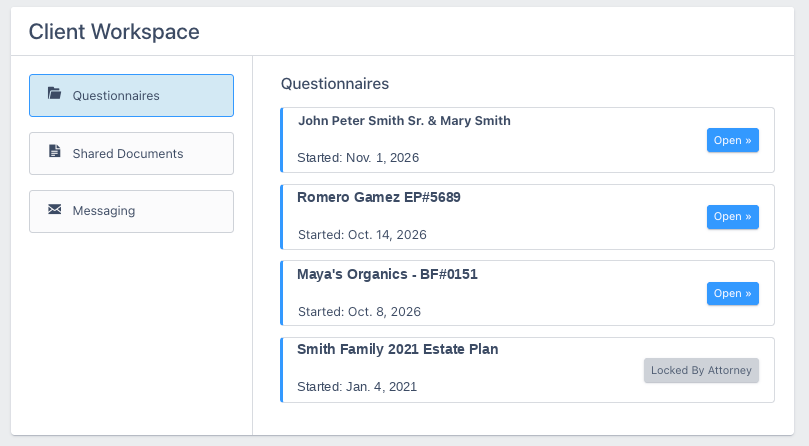
The Questionnaires tab lists every questionnaire your client has started or has been invited to, with the date it was started and an Open button. A client can have more than one questionnaire here, and a questionnaire shows a placeholder name until the client has entered the client names.
If you block further changes by the client on a matter, the questionnaire stays in the list but shows a gray Locked By Attorney label instead of the Open button, and the client can no longer open it.
Shared Documents
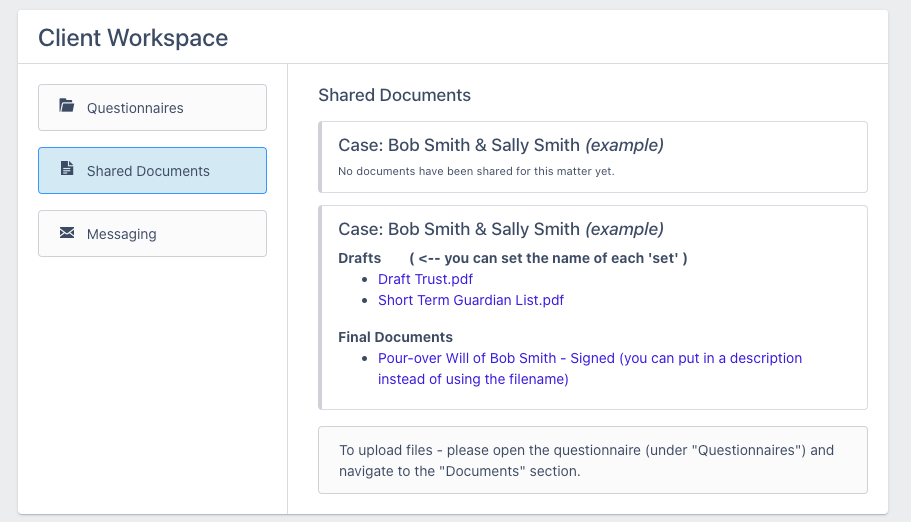
The Shared Documents tab holds the document sets your firm has shared with the client. These stay available to the client even after you close the matter, as long as it is not deleted, and even when the client's access to the questionnaire is locked.
See the article How do I share documents with a client for how to put a document set together.
Messaging
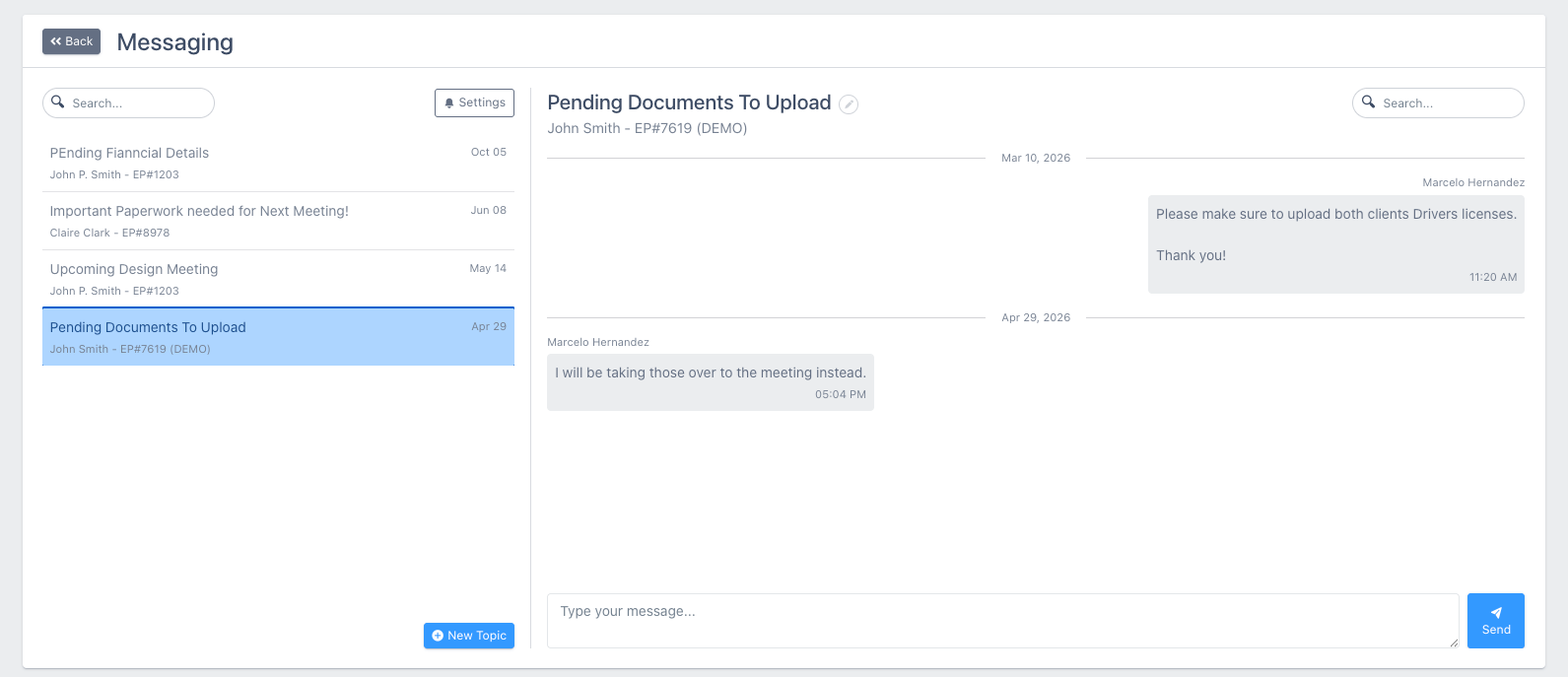
The Messaging tab gives your client a direct line to your firm. Conversations are organized into topics, and clients can start their own topics as well as reply to yours. Each client chooses their own notification digest settings, so they control how often they get emailed about new messages.
Frequently Asked Questions
Can my client still see shared documents after the matter is closed?
Yes. Closing a matter does not remove the client's access to Shared Documents. Only deleting the matter does.
What does my client see when I lock a questionnaire?
The questionnaire stays in their Questionnaires list with a Locked By Attorney label, and they cannot open it. The Shared Documents section stays available.
Can clients start a conversation, or only reply?
Clients can start their own topics in Messaging. They also choose their own notification digest settings for new messages.