How to configure client notifications
DecisionVault allows firms to automatically send emails to clients based on questionnaire activity and scheduled meetings. These notification settings are configured individually for each questionnaire type.
Accessing Client Notification Settings
To configure these settings go to Settings → Firm → Client Notifications.
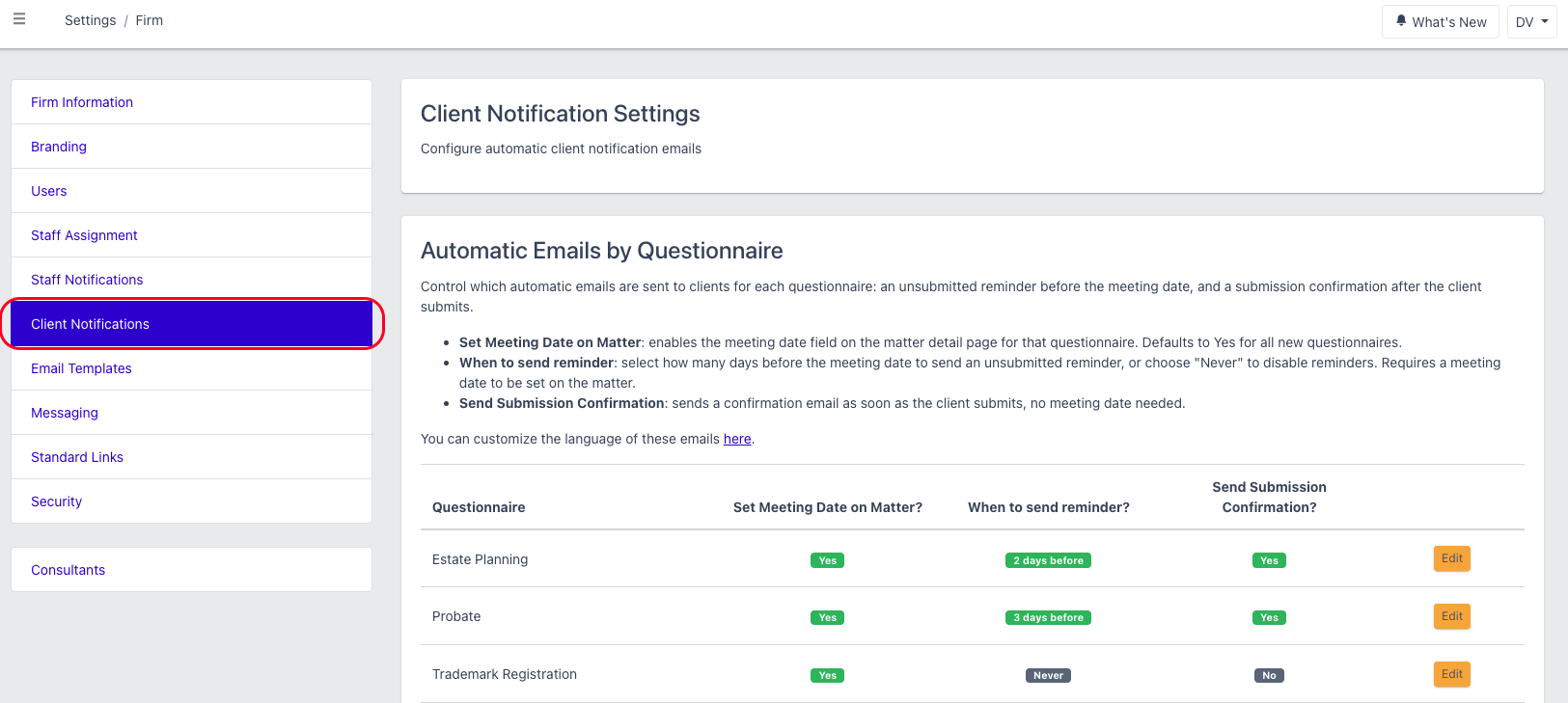
Available Settings
Set Meeting Date on Matter? - Enables the Meeting Date field on matters using that questionnaire. This date is required to trigger automated reminder emails.

When to send reminder? - Controls how many days before the scheduled meeting the client should receive a reminder email if they have not yet submitted their questionnaire.
Options include:
- Specific number of days before the meeting
- Never (disables reminder emails)
Example: If “2 days before” is selected and the meeting is scheduled for Friday, the reminder will be sent on Wednesday if the questionnaire remains incomplete.
Send Submission Confirmation? - Automatically sends a confirmation email immediately after the client submits their questionnaire. This email does not require a meeting date.
Notes:
- Reminder emails are only sent if:
- A meeting date exists on the matter
- The questionnaire has not been submitted yet
- Notification settings are configured separately for each questionnaire
- New questionnaires default to having meeting dates enabled
Frequently Asked Questions
Why didn't my client get a reminder email?
Reminder emails are only sent when a meeting date exists on the matter and the questionnaire has not been submitted yet. Check that the Meeting Date field is enabled and filled in, and that the reminder is not set to Never.
Do these settings apply to all my questionnaires?
No. Notification settings are configured separately for each questionnaire. New questionnaires default to having meeting dates enabled.
Does the submission confirmation require a meeting date?
No. The confirmation email is sent immediately after the client submits their questionnaire, with or without a meeting date.