How to customize email templates
DecisionVault sends automatic emails to your clients at key moments: when they start a questionnaire, when they submit it, when a meeting is coming up, and when you ask them for missing items. You can change the wording of each email so it matches your firm's tone, branding and communication style.
This article lists every email you can customize, explains what triggers each one, and shows how to edit it.
Accessing email templates
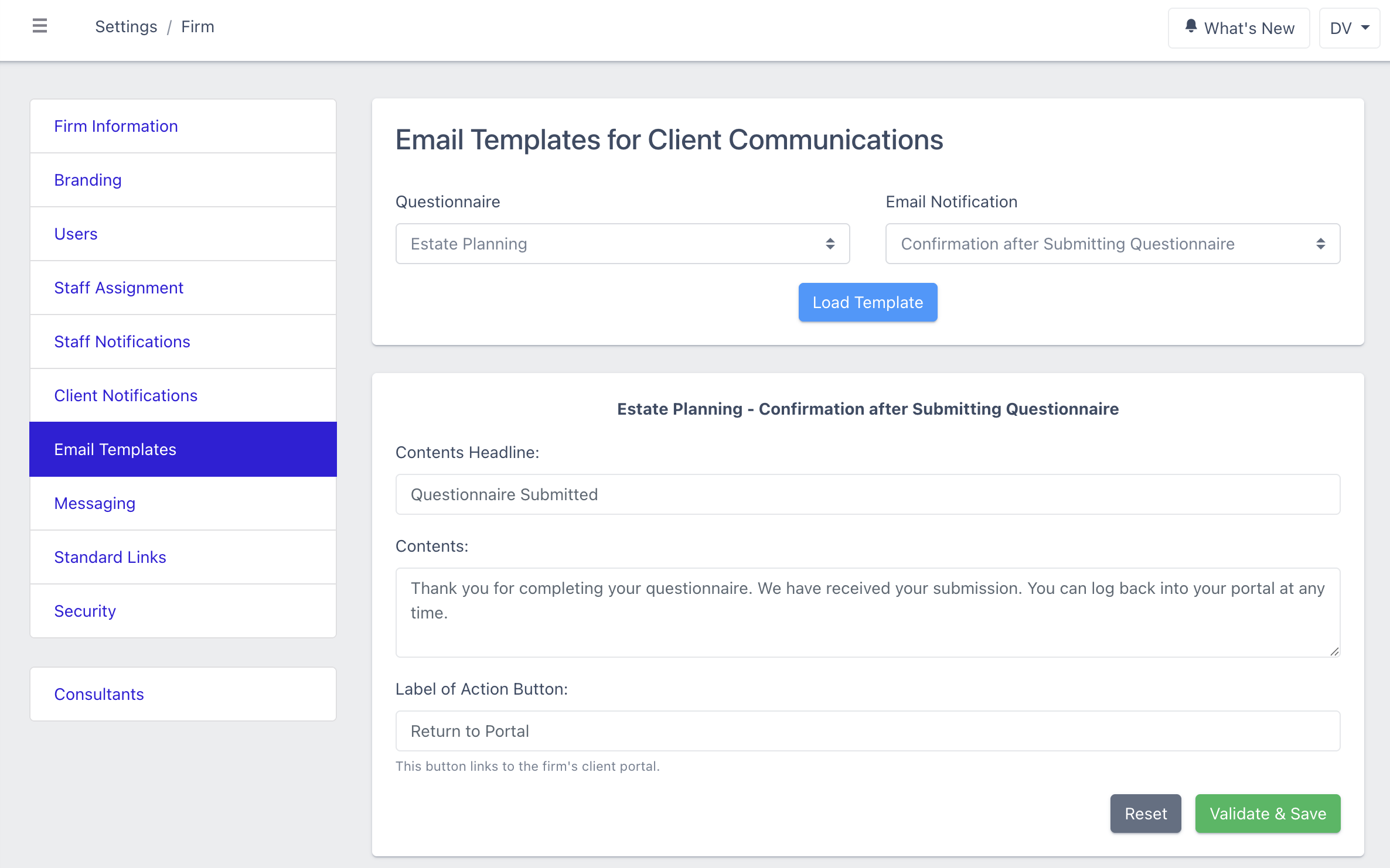
To access the templates go to Settings → Firm → Email Templates. From this page, you can review and customize the automated client communication emails associated with each questionnaire type.
Each email is sent automatically. Some depend on a setting, so check the last column.
| What triggers it | What controls it | |
|---|---|---|
| Confirmation Started on Questionnaire | Sent when a client first begins their questionnaire. | Turned on by default. |
| Reminder of Unsubmitted Questionnaire | Sent to clients who have not submitted their questionnaire, a set number of days before the meeting date. | Needs a meeting date on the matter. You choose the timing in When to send reminder? on the Client Notifications screen, or choose Never to turn it off. |
| Confirmation after Submitting Questionnaire | Sent right after a client submits their questionnaire for the first time. | Turn on Send Submission Confirmation? on the Client Notifications screen. No meeting date needed. |
| Follow-up on Missing Items - First Email | Sent when you flag items a client still needs on the Follow-up screen. It goes to all client users on the matter. | The Follow-up stage. |
| Follow-up on Missing Items - Reminder | Sent as a reminder while flagged items are still outstanding. | It stops when the client has provided everything, or when a client user selects Stop reminders in the email. Stopping applies to that client user only. |
How to customize a template
-
Select the questionnaire type, choose the email template you would like to customize and click Load Template.

-
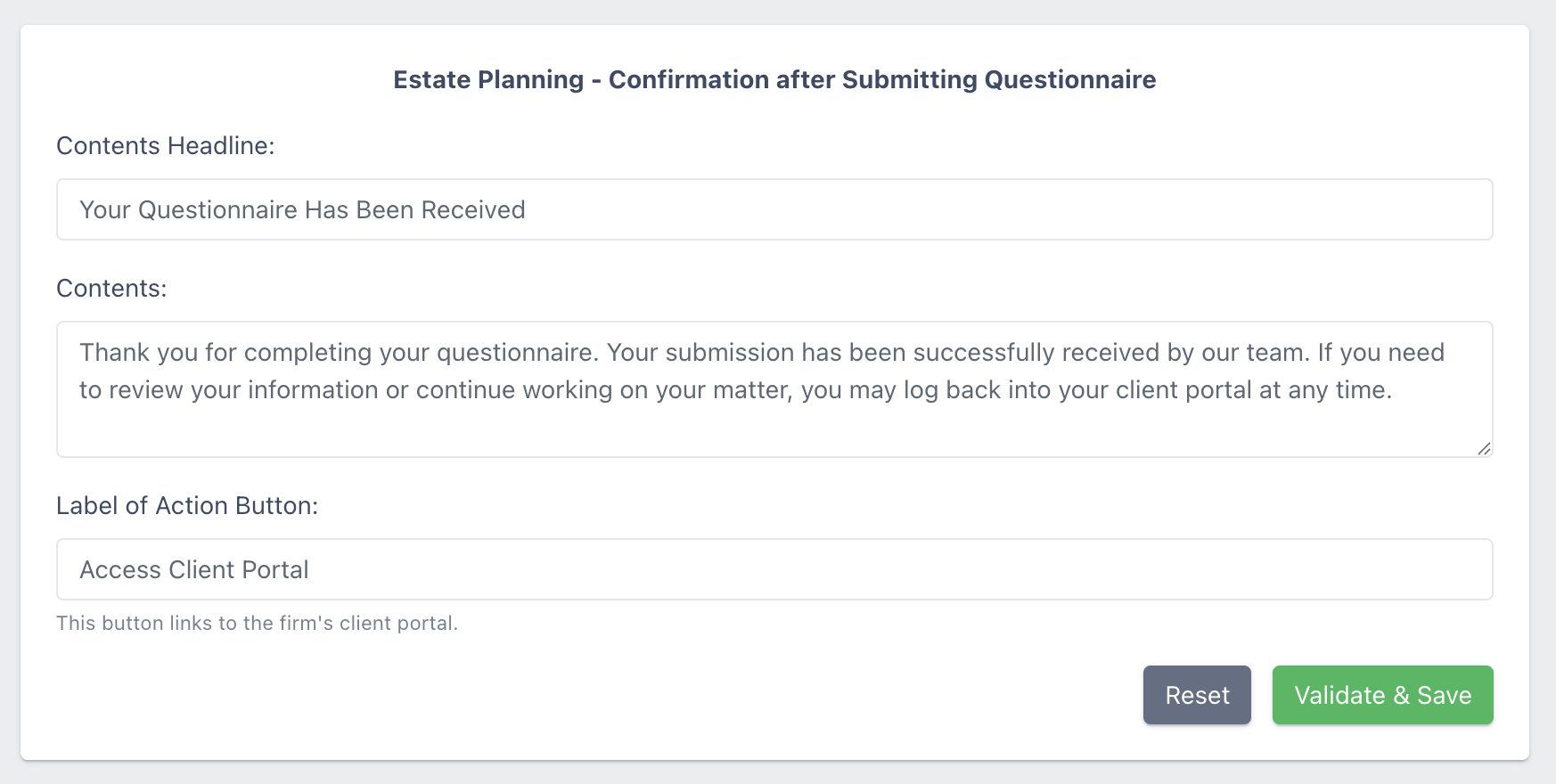
Update the content fields. You can customize:
Contents Headline -The main title displayed inside the email.
Contents - The body message sent to the client.
Label of Action Button - The action button links clients directly back to the firm’s client portal.
-
Click Validate & Save
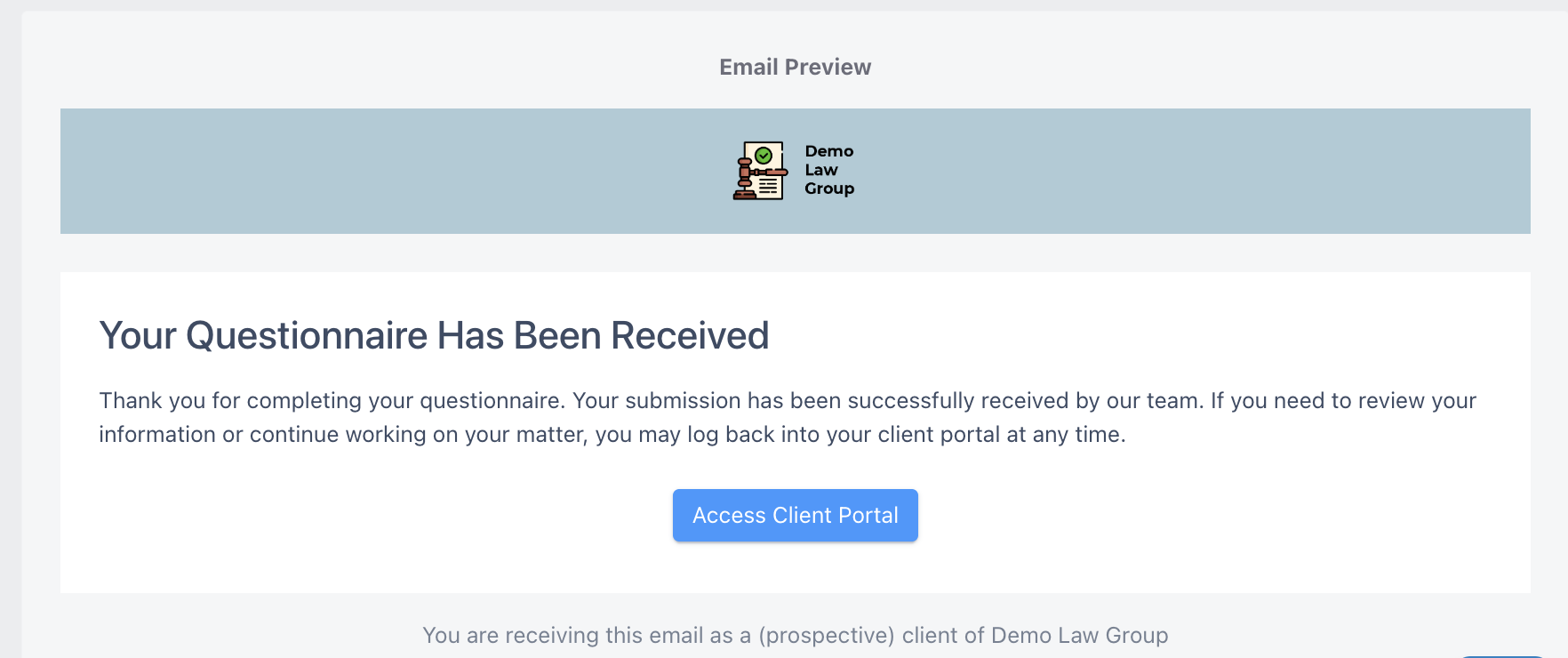
An email preview is displayed below the editor so you can review how the message will appear to clients.
Notes:
- Email templates are configured separately for each questionnaire type
- These templates are shared across all clients using that questionnaire and we recommend using general messaging that applies broadly to all recipients
- Changes apply only to future emails and previously sent emails are not updated retroactively
Frequently Asked Questions
Do changes affect emails that were already sent?
No. Changes apply only to future emails. Previously sent emails are not updated retroactively.
Do I need to update the templates for every questionnaire type?
Yes. Templates are configured separately for each questionnaire type, and each template is shared by all clients using that questionnaire, so keep the messaging general.
How do the missing items reminders stop?
They stop automatically once the client has provided everything, or when a client user selects Stop reminders in the email. Stopping applies to that client user only.