How to use the Clients and Client Users screens
DecisionVault has two screens for the people you work with: Clients lists everyone entered as a client on a matter, and Client Users lists the login accounts that can open your client portal. One person usually appears on both.
The Clients screen
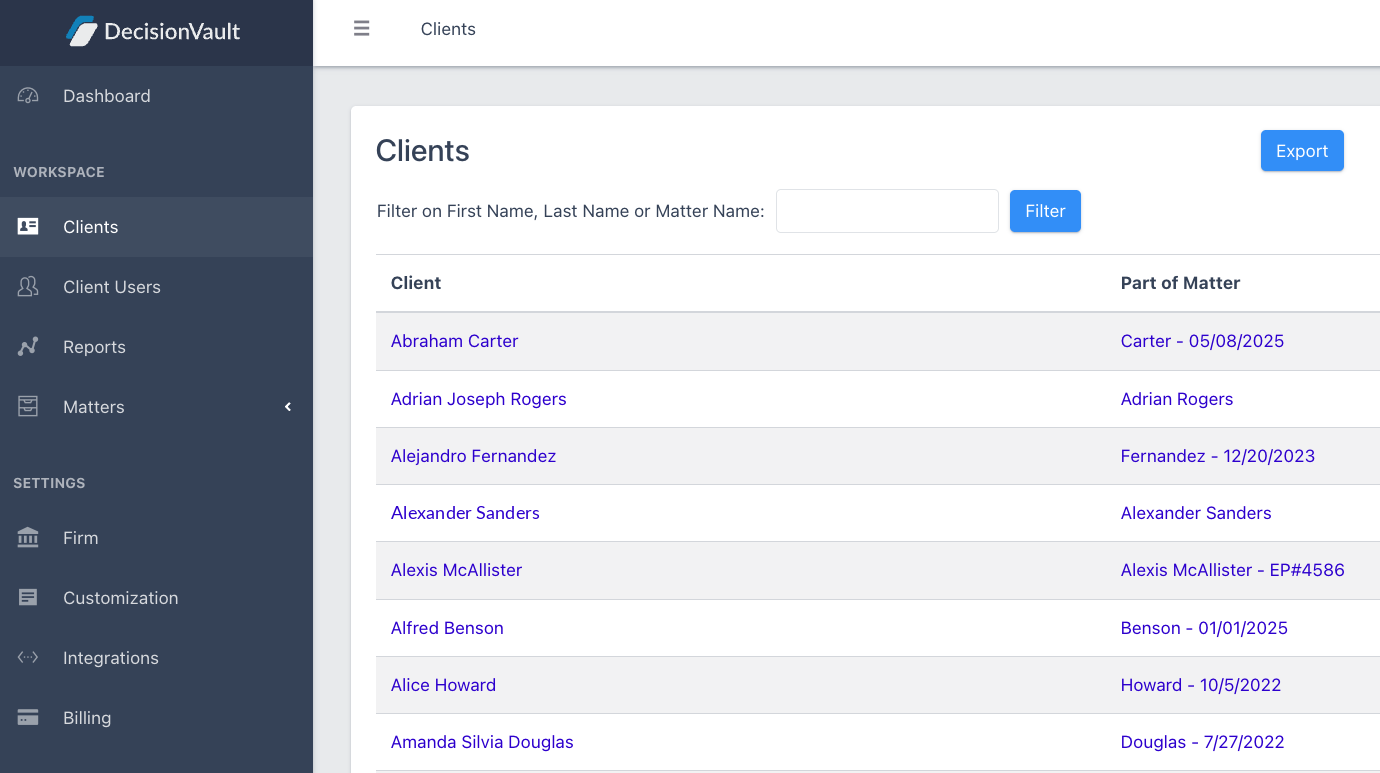
Go to Clients in the left menu to see every client and the matter they belong to. Type a first name, last name or matter name in the filter box and click Filter to find someone quickly. Click Export to download the list. See How to export a list of client email addresses for details.
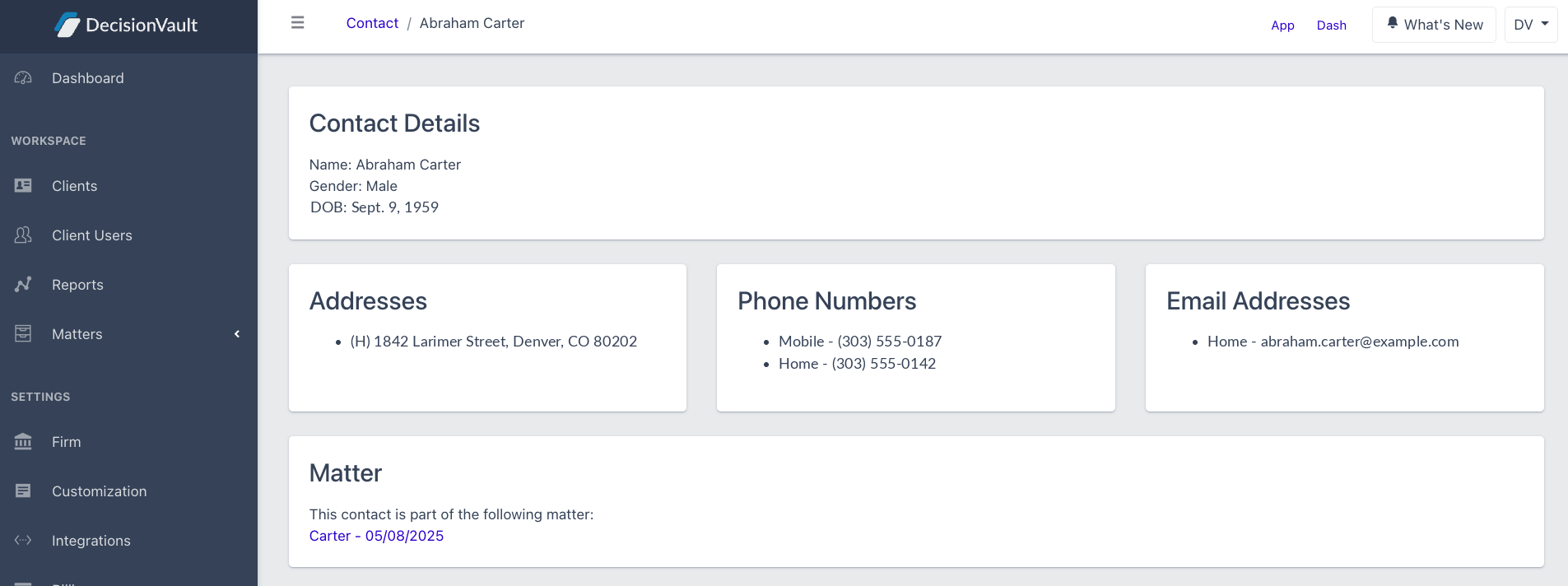
Click a client's name to open their Contact Details: name, gender, date of birth, addresses, phone numbers, email addresses, and the matter they are part of.
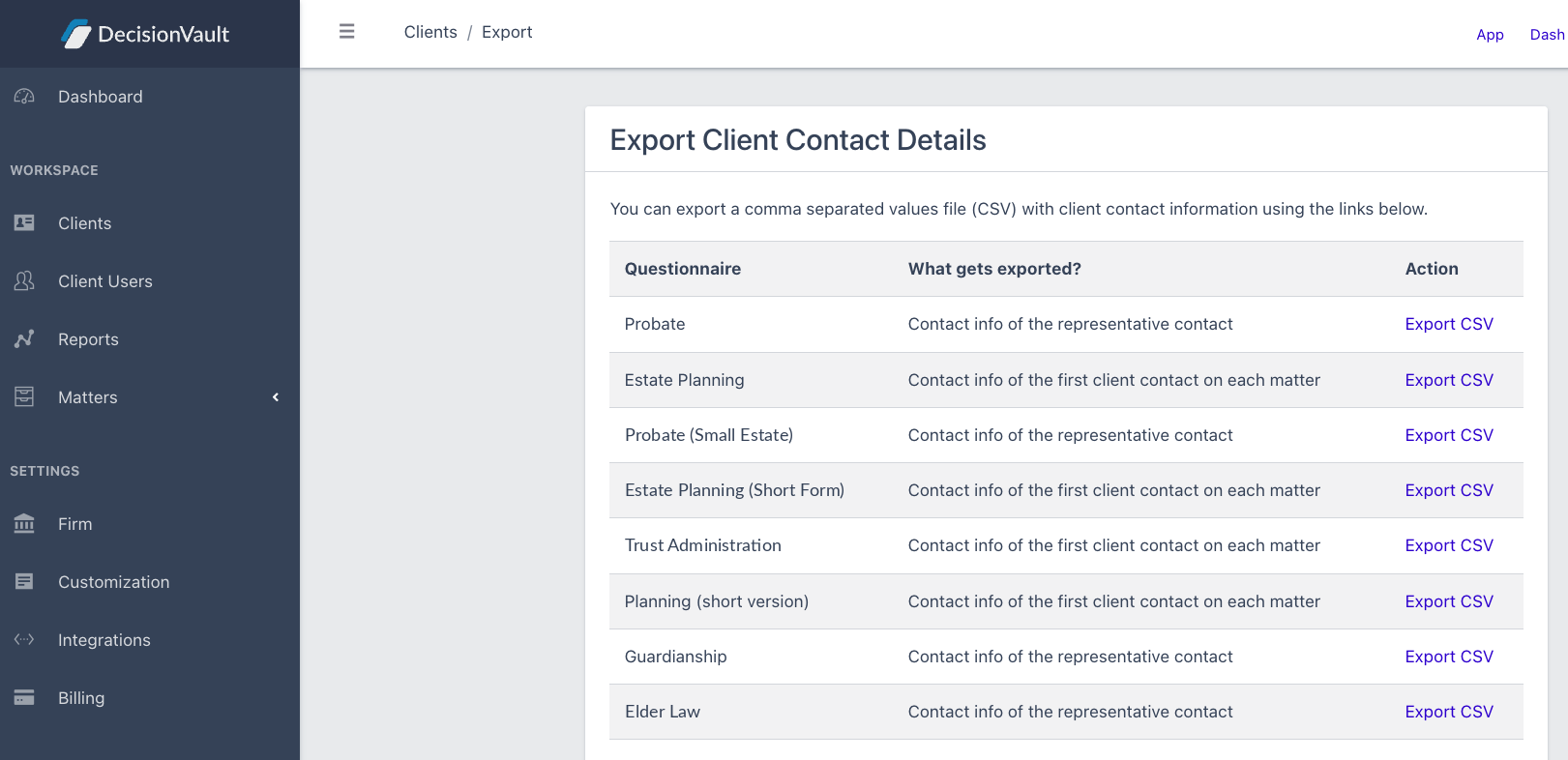
The Export page lets you download a CSV of client contact details for each questionnaire. For planning questionnaires the file holds the first client contact on each matter; for probate and guardianship questionnaires it holds the representative contact.
The Client Users screen
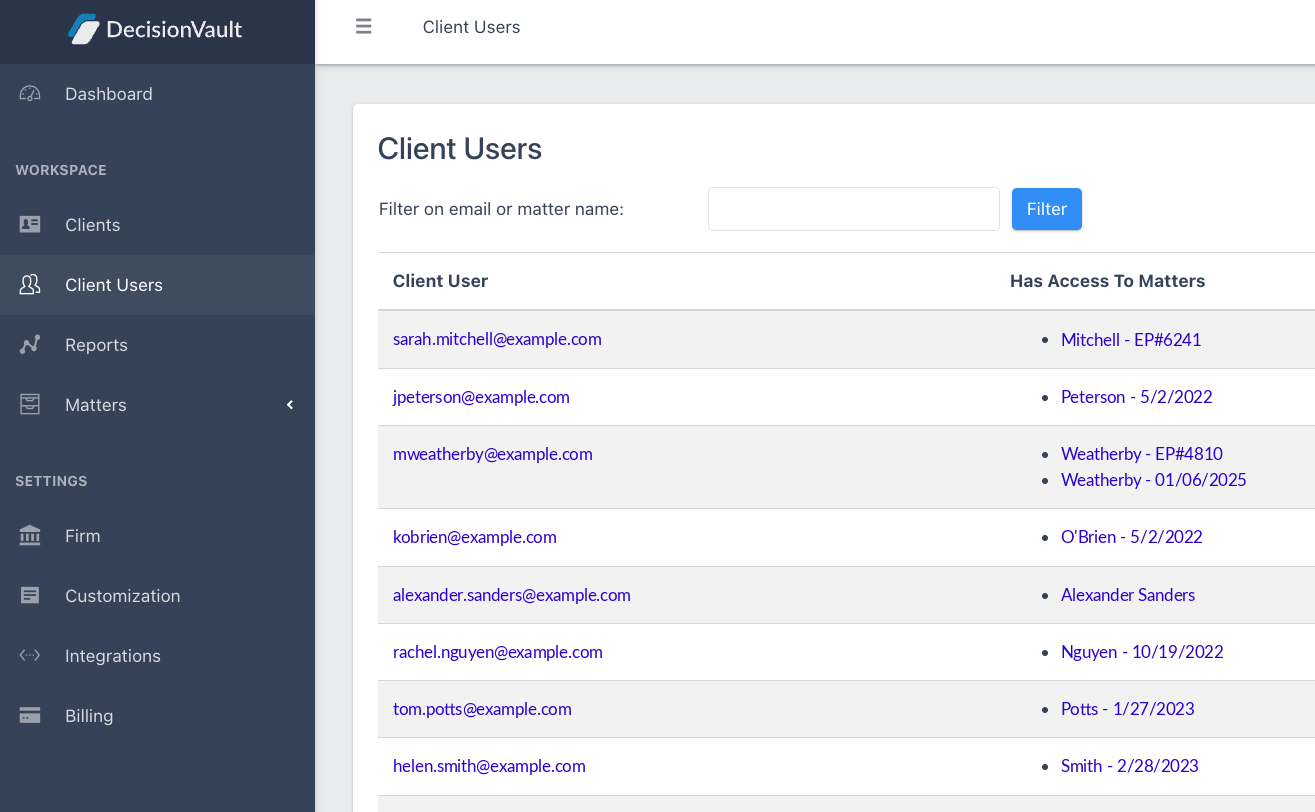
Go to Client Users in the left menu to see every client login and the matters it can access. Filter by email address or matter name to find one.
Click an email address to open that client user. From there you can:
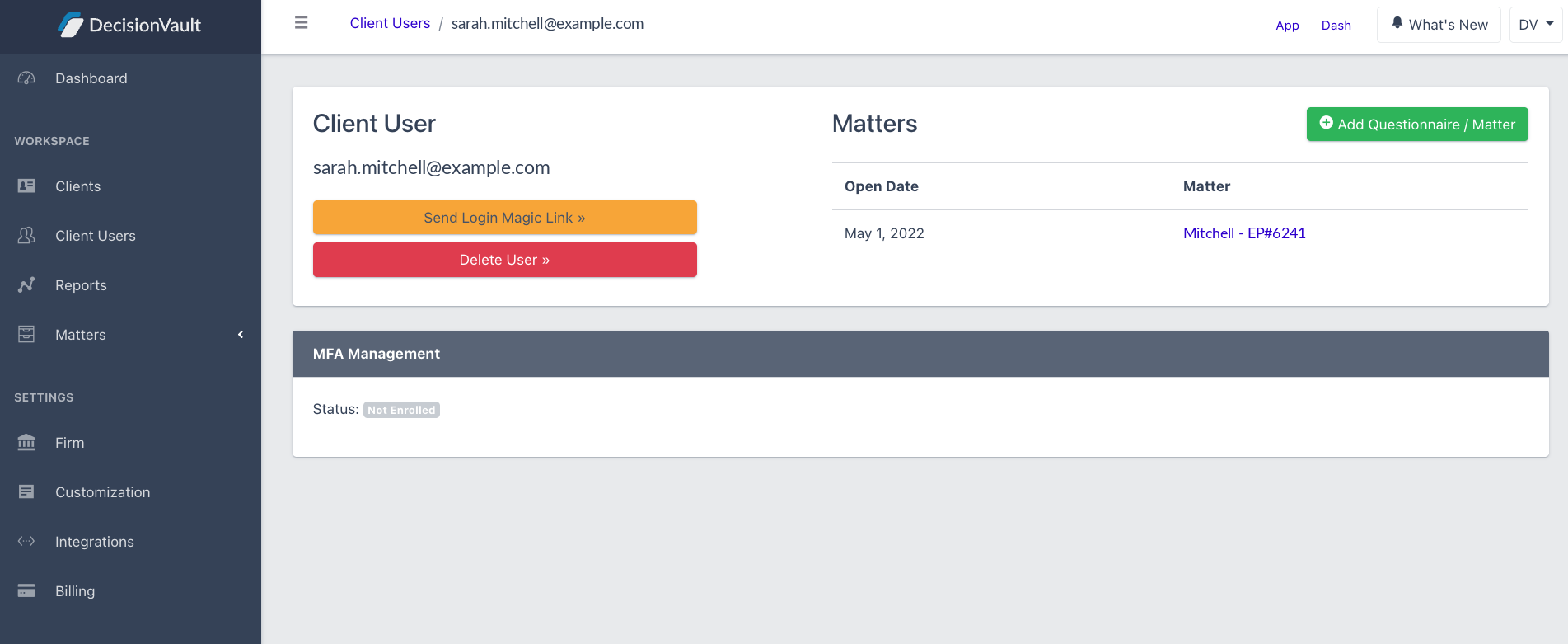
- Send Login Magic Link: emails the client a one-click sign-in link. This is the quickest fix when a client cannot get back in.
- Add Questionnaire / Matter: starts another questionnaire for the same client user, without a second account.
- MFA Management: shows whether the client has set up multi-factor authentication.
- Delete User: removes this client login.
Clients versus client users
A client is a person recorded on a matter. A client user is someone who can sign in to the portal for that matter. Every client user on a matter has the same access to it; you cannot give one person access to only part of a matter. To let someone send files without full access, use an External Upload Link instead.
Frequently Asked Questions
My client cannot sign in. What should I do first?
Open the client user and click Send Login Magic Link. If that does not help, see the Troubleshooting client users login issues article.
How do I start a new questionnaire for a client who already has an account?
Create the new matter, then add them on the matter's Client Users tab as an existing client user, or use Add Questionnaire / Matter on their client user screen. Do not send them a standard link, as that creates a second matter.