How to communicate with clients using secure messaging
The Messaging feature allows firm staff and clients to communicate directly within DecisionVault through secure conversation threads. Conversations are organized into topics, making it easy to keep discussions separated by subject while maintaining all communication within the client portal.
Once enabled, both firm staff and client users can create new conversation topics, exchange messages, and customize how they receive these message notifications.
Enable secure messaging
Before messaging can be used, the feature must be enabled by a firm admin. Navigate to Settings > Firm > Messaging and turn on the Secure Messaging Functionality toggle.
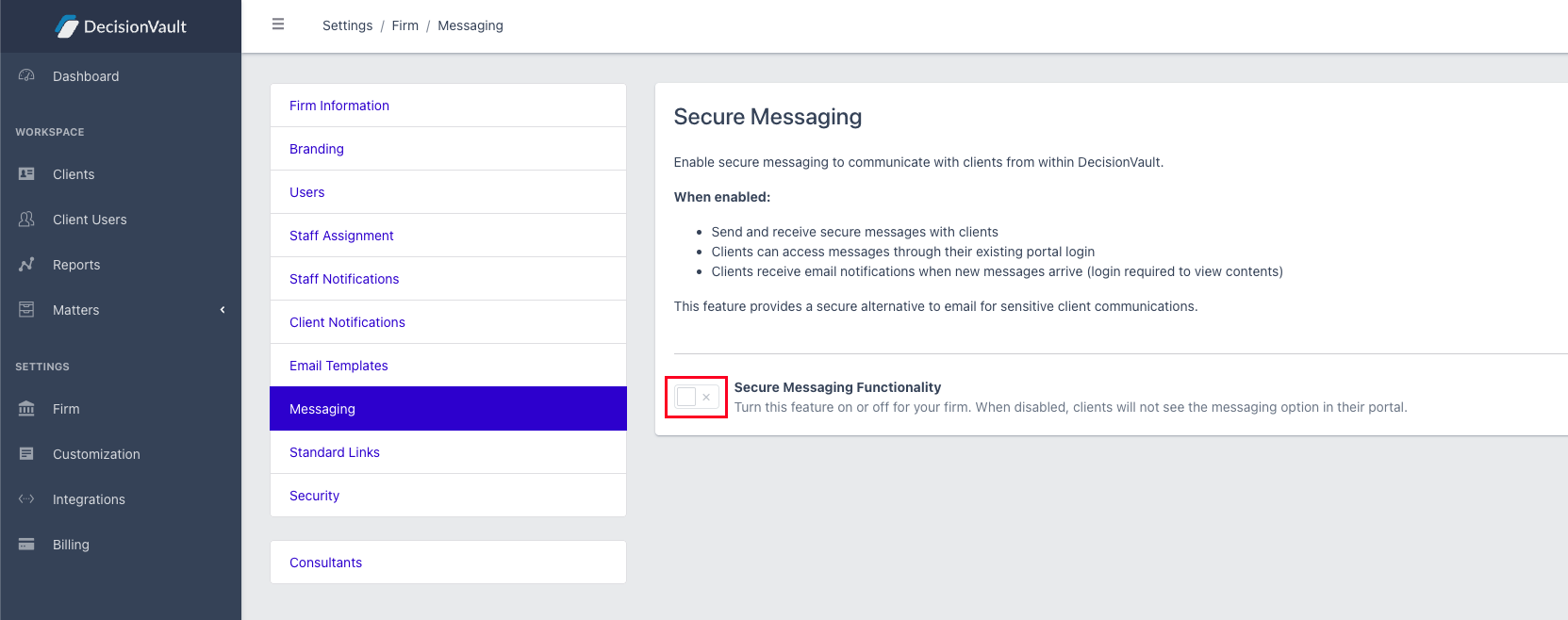
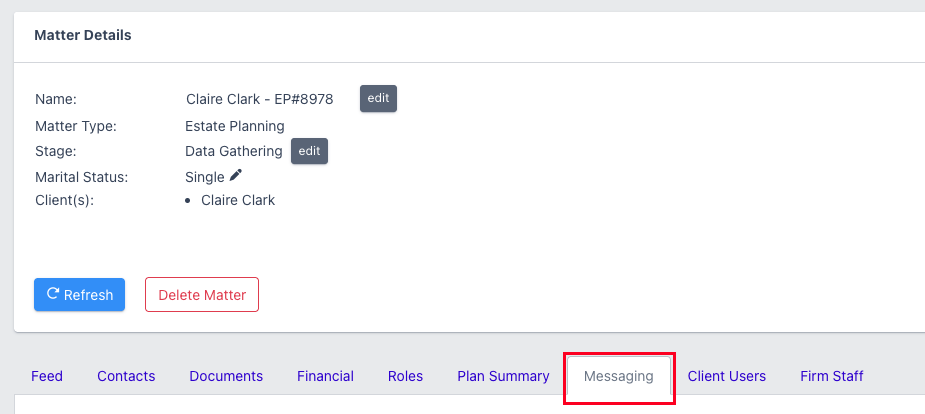
After the feature is enabled, a Messaging tab will appear within each matter details screen, and clients will see a Messaging section in their Client Portal.
Start a conversation as a firm user
To access messaging, open a matter and select the Messaging tab.
To create a new conversation click on the 'New Topic' button.
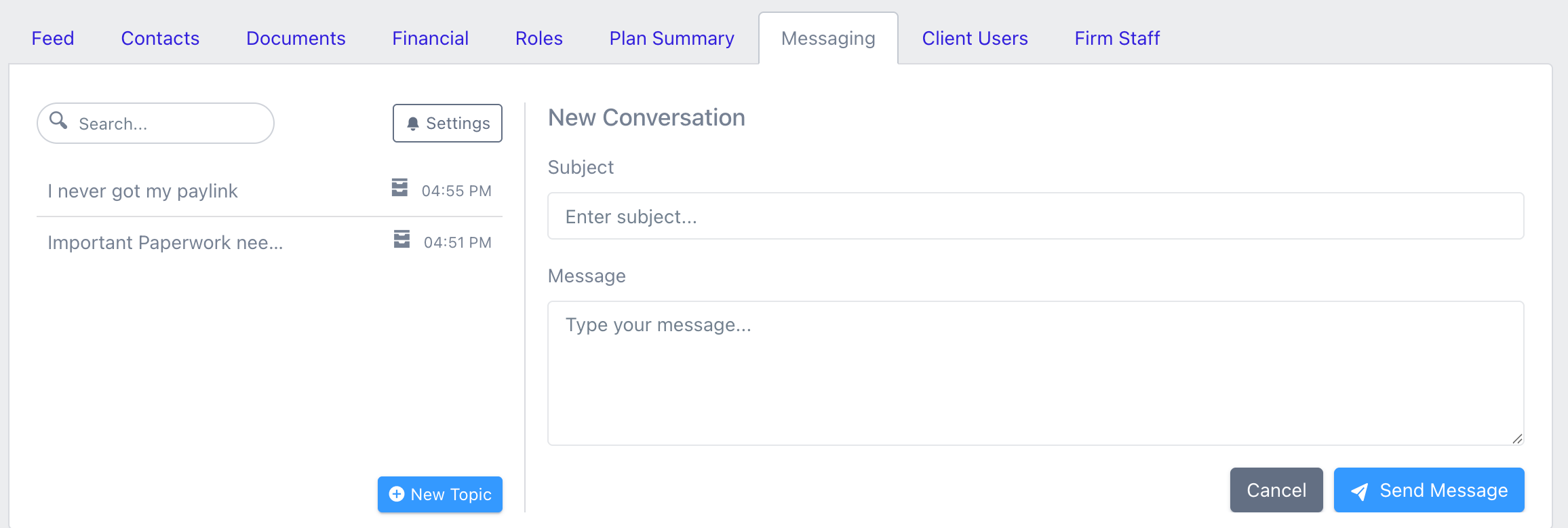
- Enter a subject for the conversation.
- Type your message.
- Click Send Message.
The conversation will immediately become available to all client users associated with the matter. Multiple topics can be created within the same matter, allowing conversations to remain organized by subject. For example, firms may choose to maintain separate topics for appointment scheduling, document requests, and case updates.
Manage conversation topics
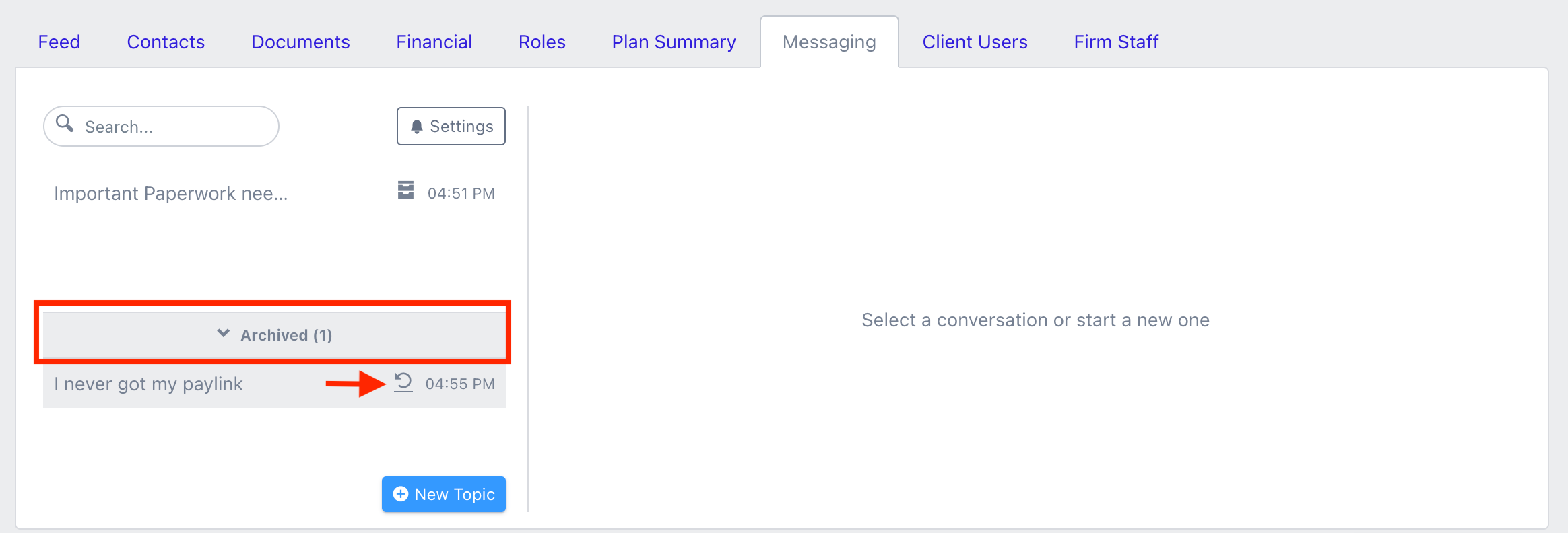
Both firm staff and client users can create new conversation topics. However, only firm staff users can archive topics when a discussion is complete or no longer relevant. Archived topics help keep active conversations organized while preserving the communication history.
To archive any topic just click on the Archive button.
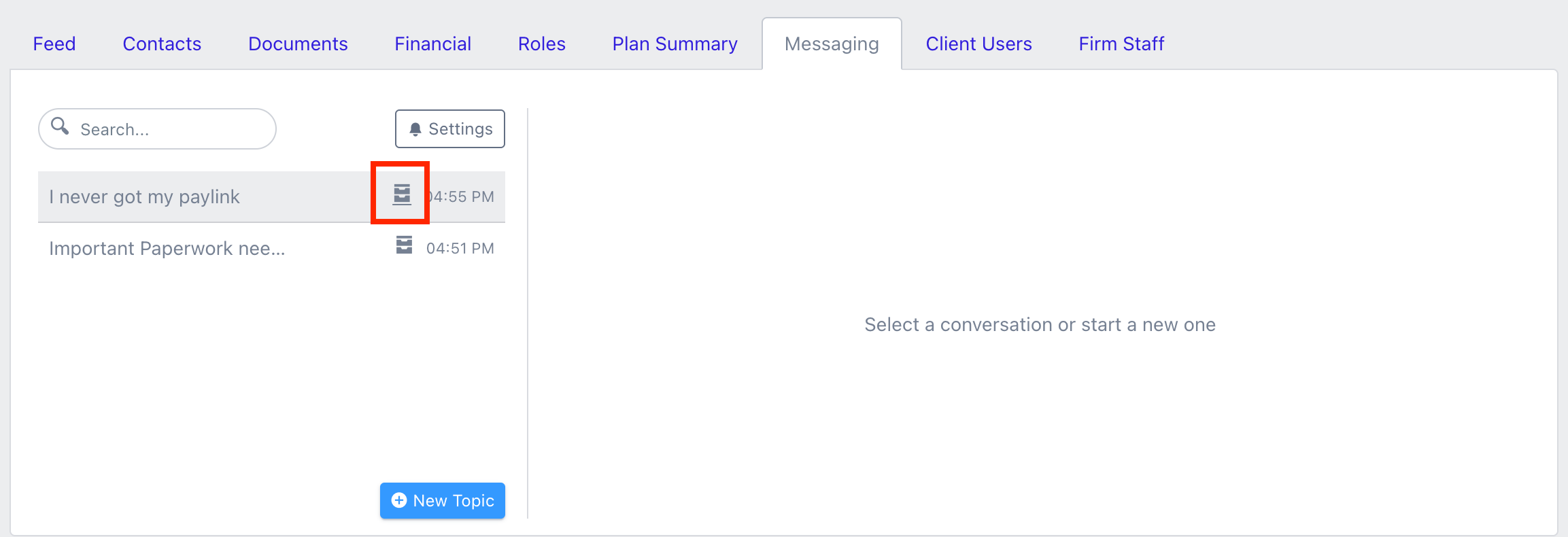
Any archived topic can be restored by clicking on the Restore button from the archived topics list.
Access messaging as a client
Clients can access the messages directly from their Client Portal.
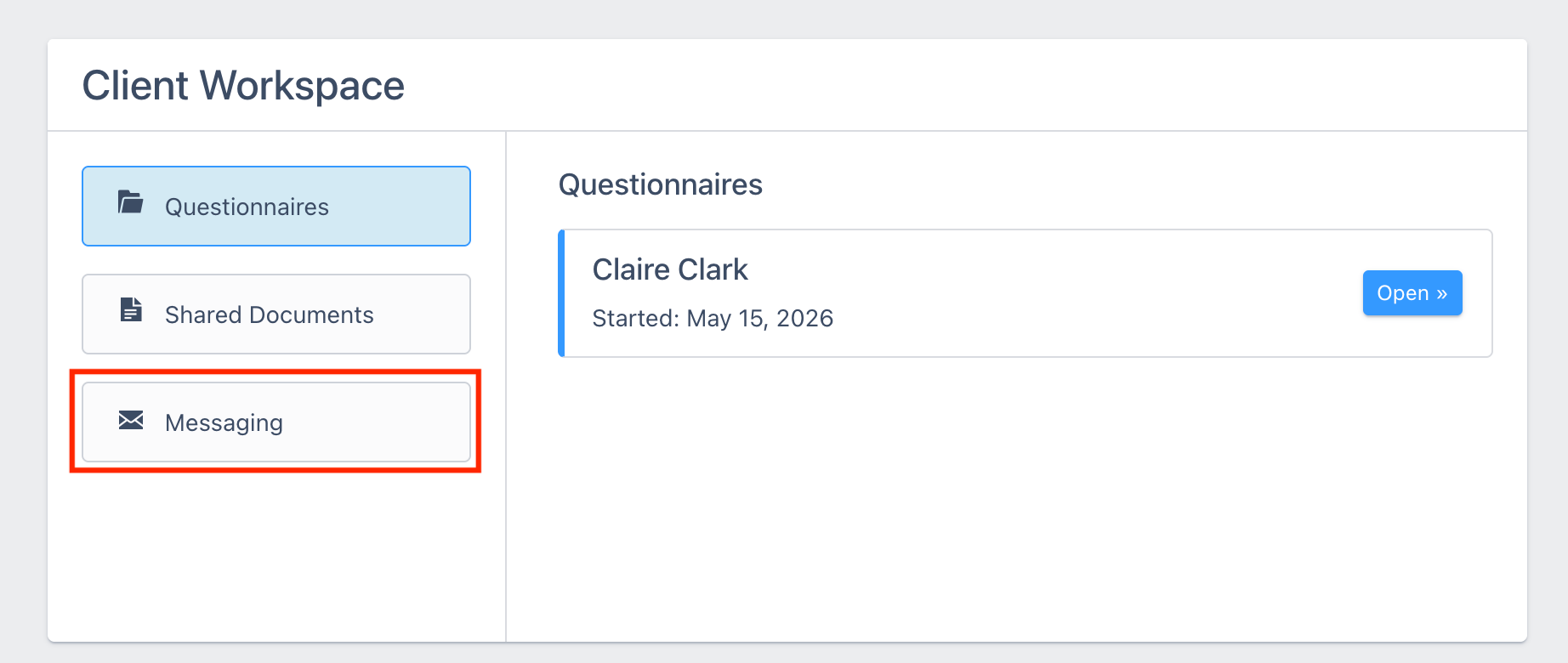
Clients can participate in existing discussions, send replies, and start new conversation topics as needed. All conversations related to their matters remain available within the Messaging section of the portal.
Configure notification preferences
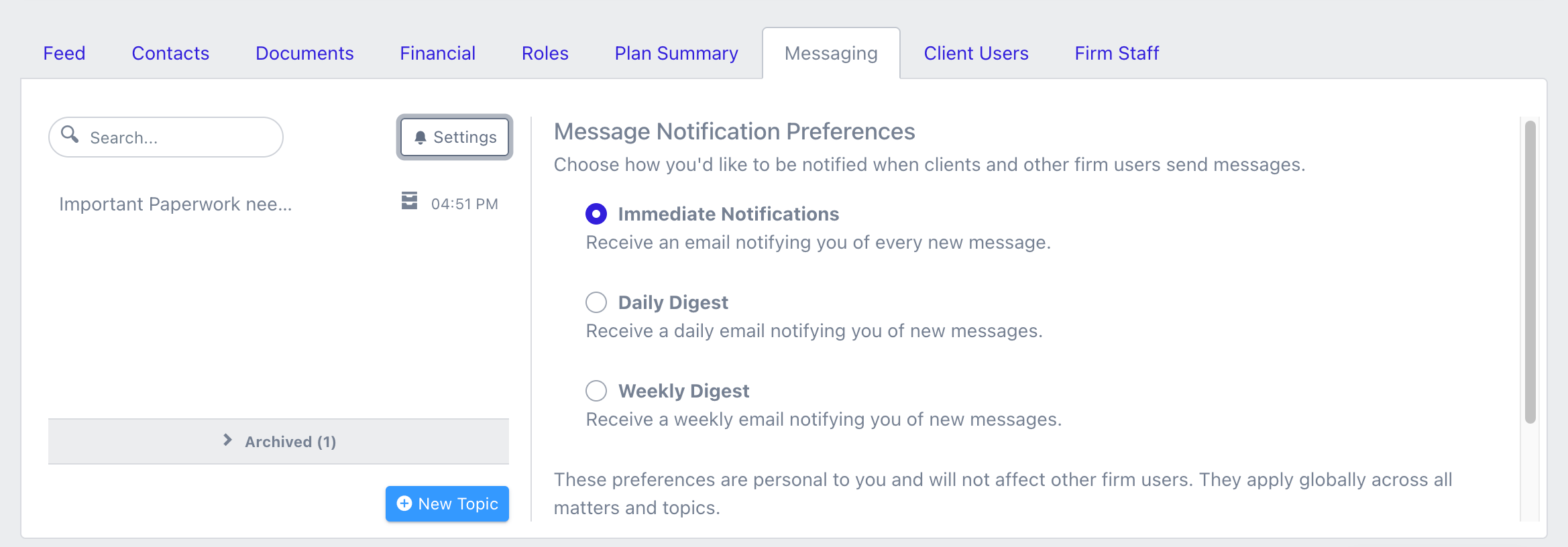
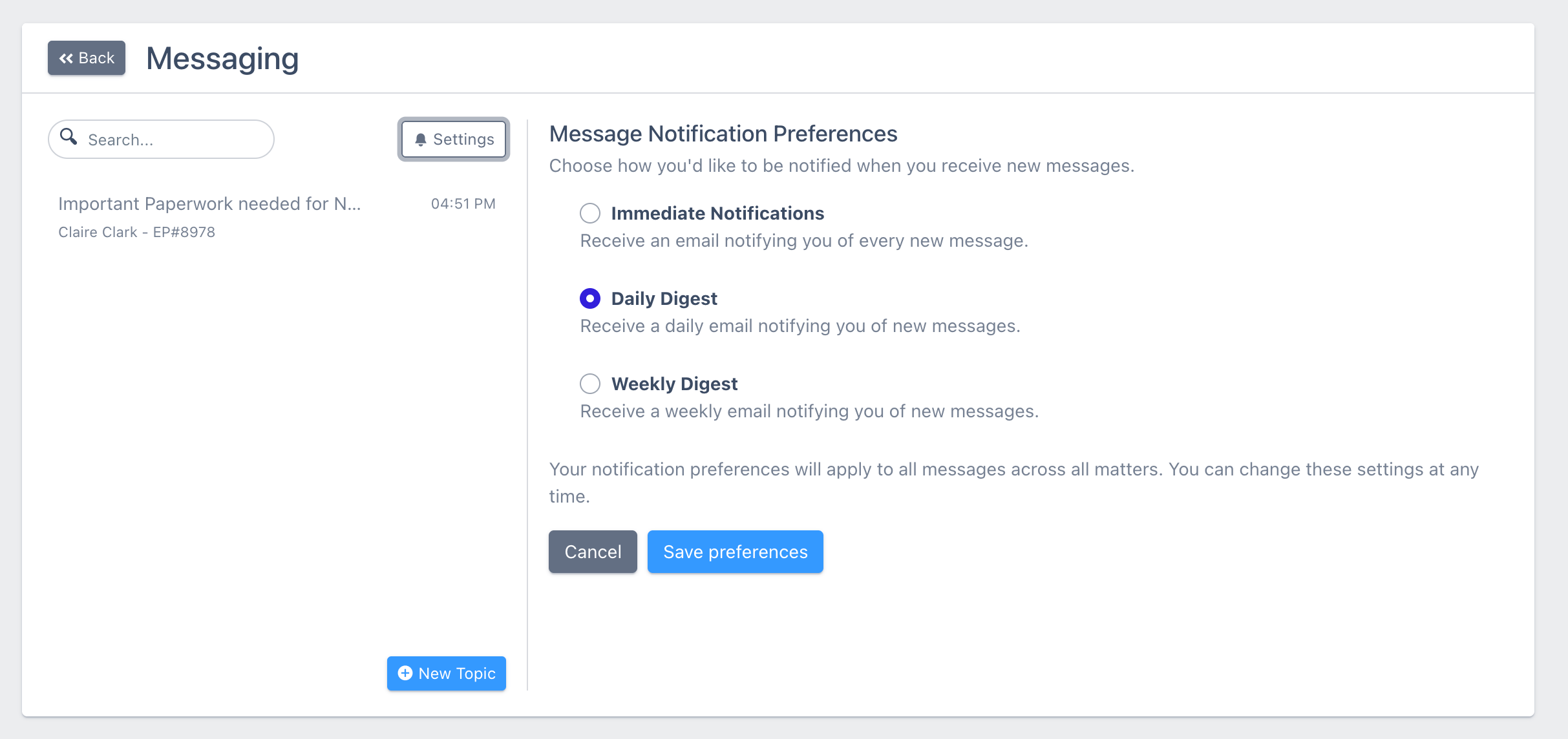
Both firm staff and client users can choose how they receive message notifications. Notification preferences apply across all matters and can be updated at any time. Users can choose from three notification options:
- Immediate notifications: An email notification is sent each time a new message is received.
- Daily digest: A daily summary email is sent containing any new message activity.
- Weekly digest: A weekly summary email is sent containing any new message activity.
Firm users can update these from the Settings button within the Messaging tab in the matter details screen:
Client users can update these from the Settings button within the Messaging tab in their portal:
Note: For security purposes, message contents are not included in notification emails. Users must sign in to DecisionVault to view and respond to messages.